Import a PDF
Start a new book project by bringing your PDF into ADT Studio.
Every ADT starts as a project: one book, one folder, everything in one place. You set it up with a short wizard — starting with your PDF here, and finishing with your extraction settings on the next page.
Not the same as “Import a Project”
ADT Studio also has a separate Import a Project option, for re-opening a project you previously exported as a .zip. That's different from what this page covers: bringing in a brand-new PDF. If you're starting from a PDF, look for Convert a PDF instead.
Before you import
The quality of your ADT depends heavily on the quality of your source PDF. If you haven't yet, read What type of content can become an ADT? — it explains which PDFs convert well and what to check before you start.
First time?
Start with a short, simple PDF (10 to 30 pages). You will see the whole process faster and learn what each step does before working with a full textbook. You don't need a short file, either — the next page lets you convert just a page range from a longer PDF.
Importing
Choose Convert a PDF, then drop your file onto the upload screen (or use Upload PDF to pick it from disk) and select Continue. ADT Studio suggests a project name from your file name — you'll confirm or change it, along with the rest of your extraction settings, on the next page.
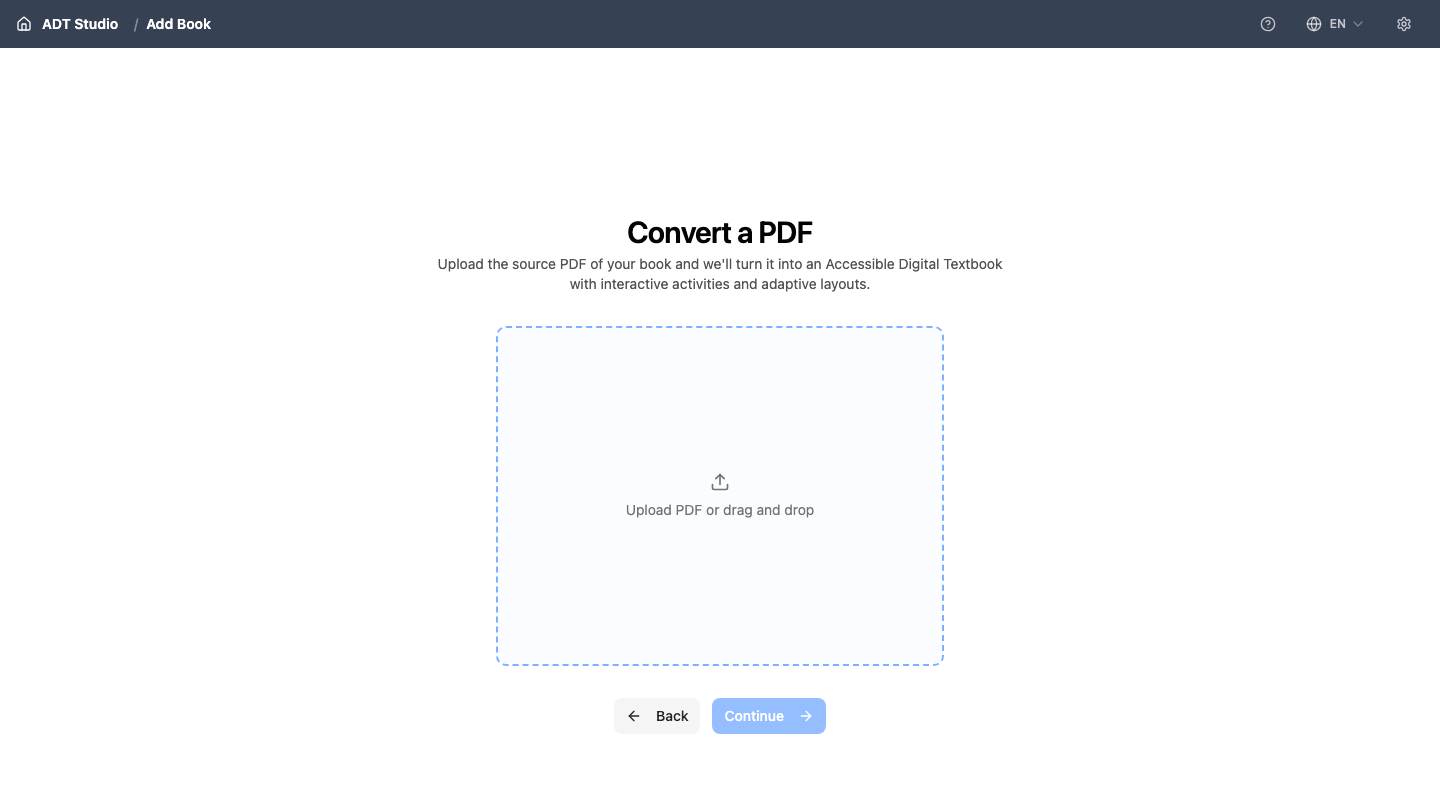
Nothing is written to your computer until you finish that setup and select Create ADT. Only then does ADT Studio create the project folder that will hold the source file, your settings, all generated content, and every version — all in one place.
You can create as many projects as you want. Each one is independent.
What happens next
The next page, Extract content, walks you through configuring — and then running — the extraction. If you already have an API key saved when you select Create ADT, extraction starts automatically, and you'll land on your book with that work already underway. Sectioning is a separate step you run afterward.