Language
Make your ADT available in more than one language.
One source, many languages. ADT Studio can translate your book's content with AI support, so a single conversion effort can serve learners in several languages — including learners whose first language is not the language of instruction.
This is different from the Languages sub-step during content extraction — that step only selects which languages your ADT targets; this is the stage where the translations for each of those languages actually get generated.
Decisions to make
- Which languages does your audience actually need? Each language adds AI processing, and therefore cost. Choose based on the classrooms the ADT will reach.
- Who reviews the translation? AI translation is a strong starting point, but curriculum language, local terminology, and cultural context deserve a human check — ideally by an educator who knows the audience.
- Should images be translated too? If a figure has burned-in text — a sign, a label, a diagram callout — decide whether it's worth regenerating that image with translated text, or leaving it in the source language.
Configure and generate
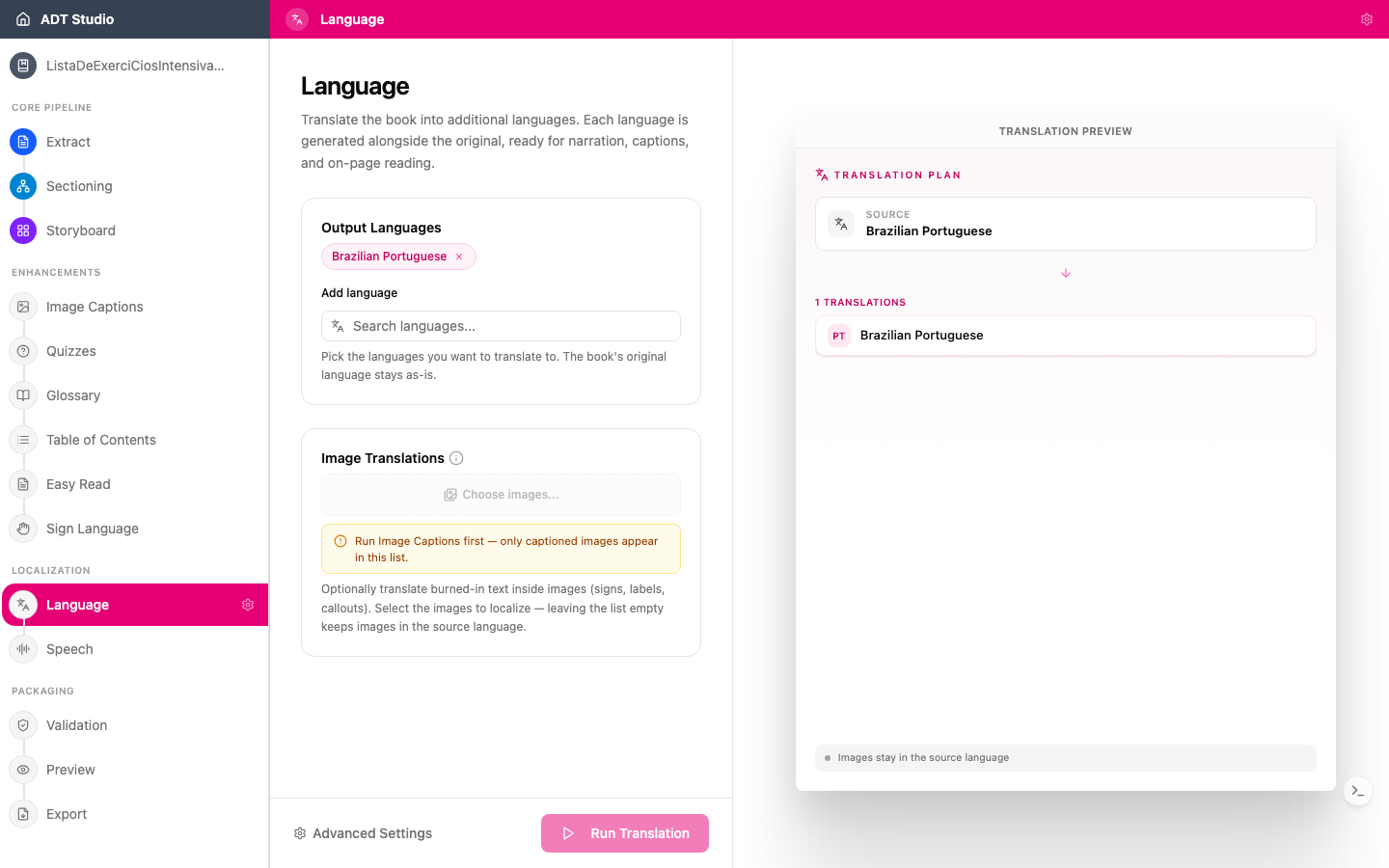
Translation needs your book's sections typed and placed first — if Storyboard isn't finished, the stage tells you so instead of letting you run it. Once it's ready, open the Language stage and set:
- Output Languages — add every language you want generated alongside the original. This is independent from (and can differ from) the output languages you picked during extraction; the book's original language is never changed.
- Image Translations (optional) — choose specific images to regenerate with translated in-image text, using Choose images.... Leaving the list empty keeps every image in the source language. This option only lists images once Image Captions has run — captioning is what identifies which images have text worth translating.
When you're ready, select Run Translation. Each output language is generated from the book's typed content — this isn't a review of a pre-existing translation, it's where the translation is produced.
Review and edit
Once translation runs, every entry — page text, captions, activity answers, glossary terms, Easy Read text — becomes editable per output language. Filter by content category or by page, switch between languages with the language pills, and use the Missing filter to jump straight to anything that didn't get translated. Edits are saved as a new version, with the version picker to preview or roll back.
When you're done
With translations in place, narration comes next: Speech generates voice audio in each of your ADT's languages.