DataChecker configuration
DataChecker configuration is used to validate beneficiary data in CW.
DataChecker context
It defines which beneficiary fields are expected, how they are grouped, and which validation rules should be applied. DataChecker is configured on the Program and used to validate households and individuals.
DataChecker fields must fully match the beneficiary data structure expected by HOPE Core. HOPE Core is the source of truth for field names, required fields, field types, and validation expectations.
Where to find it
DataChecker configuration is managed in the Django admin under Home › Flex Fields.
This section contains:
- DataCheckers — final validation configurations assigned to Programs;
- Field Definitions — reusable field types;
- Fieldsets — reusable groups of fields;
- Flex Fields — technical beneficiary fields used in validation and imports.
When DataChecker is used
DataChecker can be used when:
- beneficiary data is imported or validated after import;
- a beneficiary is edited in the admin form;
- a single beneficiary is validated manually;
- the whole Program is validated.
How DataChecker configuration is built
The diagram below shows how reusable Fieldsets and prefixes affect the final fields inside a DataChecker.
flowchart TB
    subgraph DC["DataChecker: pr1 Ind core"]
        CORE["Fieldset: Individual core<br/>order: 1<br/>prefix: empty"]
        NID["Fieldset: HOPE Document<br/>order: 2<br/>prefix: national_id_"]
        PASS["Fieldset: HOPE Document<br/>order: 3<br/>prefix: passport_"]
    end

    subgraph IND["Reusable Fieldset: Individual core"]
        SEX["Flex Field: sex"]
        BIRTH["Flex Field: birth_date"]
    end

    subgraph DOC["Reusable Fieldset: HOPE Document"]
        NUMBER["Flex Field: document_number"]
        COUNTRY["Flex Field: country"]
    end

    SEX --> SEX_DEF["Field Definition: Sex choice"]
    BIRTH --> DATE_DEF["Field Definition: Date field"]
    NUMBER --> TEXT_DEF["Field Definition: Text field"]
    COUNTRY --> COUNTRY_DEF["Field Definition: Country choice"]

    CORE -. "sex stays sex" .-> SEX
    CORE -. "birth_date stays birth_date" .-> BIRTH

    NID -. "document_number becomes national_id_document_number" .-> NUMBER
    PASS -. "document_number becomes passport_document_number" .-> NUMBER
A DataChecker is built from one or more Fieldsets.
A Fieldset is a reusable group of related Flex Fields. It can be added to a DataChecker once without a prefix, or reused several times with different prefixes.
A prefix is applied only inside a specific DataChecker. It changes final field names without changing the original Fieldset. For example, document_number can become national_id_document_number or passport_document_number.
Without a prefix, field names stay unchanged: sex stays sex, birth_date stays birth_date.
A Flex Field is the actual beneficiary field. It uses a Field Definition for its field type and default attributes.
The prefixed names exist only in the final DataChecker structure; the reusable Fieldset itself stays unchanged.
Recommended workflow
flowchart TD
    Core["HOPE Core expected structure"]

    subgraph Config["Build DataChecker configuration"]
        FD["Field Definitions<br/>reusable field types"]
        FF["Flex Fields<br/>technical field names"]
        FS["Fieldsets<br/>field groups + validation"]
        DC["DataChecker<br/>final validation setup"]

        FD --> FF
        FF --> FS
        FS --> DC
    end

    subgraph Check["Verify configuration"]
        T1["Test Fieldsets"]
        T2["Test DataChecker"]
        VF["Validate sample file"]
        XLS["Create XLSX importer"]

        T1 --> T2
        T2 --> VF
        T2 --> XLS
    end

    subgraph Use["Use in CW"]
        Program["Assign to Program"]
        Import["Import beneficiary data"]
        Validate["Run beneficiary validation"]

        Program --> Import
        Program --> Validate
        Import --> Validate
    end

    Core -. defines expected fields .-> FD
    Core -. defines names and structure .-> FF
    Core -. defines required grouping .-> FS
    DC --> Check
    Check --> Program
Main concepts
Field Definition
A Field Definition describes a reusable field type used by Flex Fields.

Creating a Field Definition
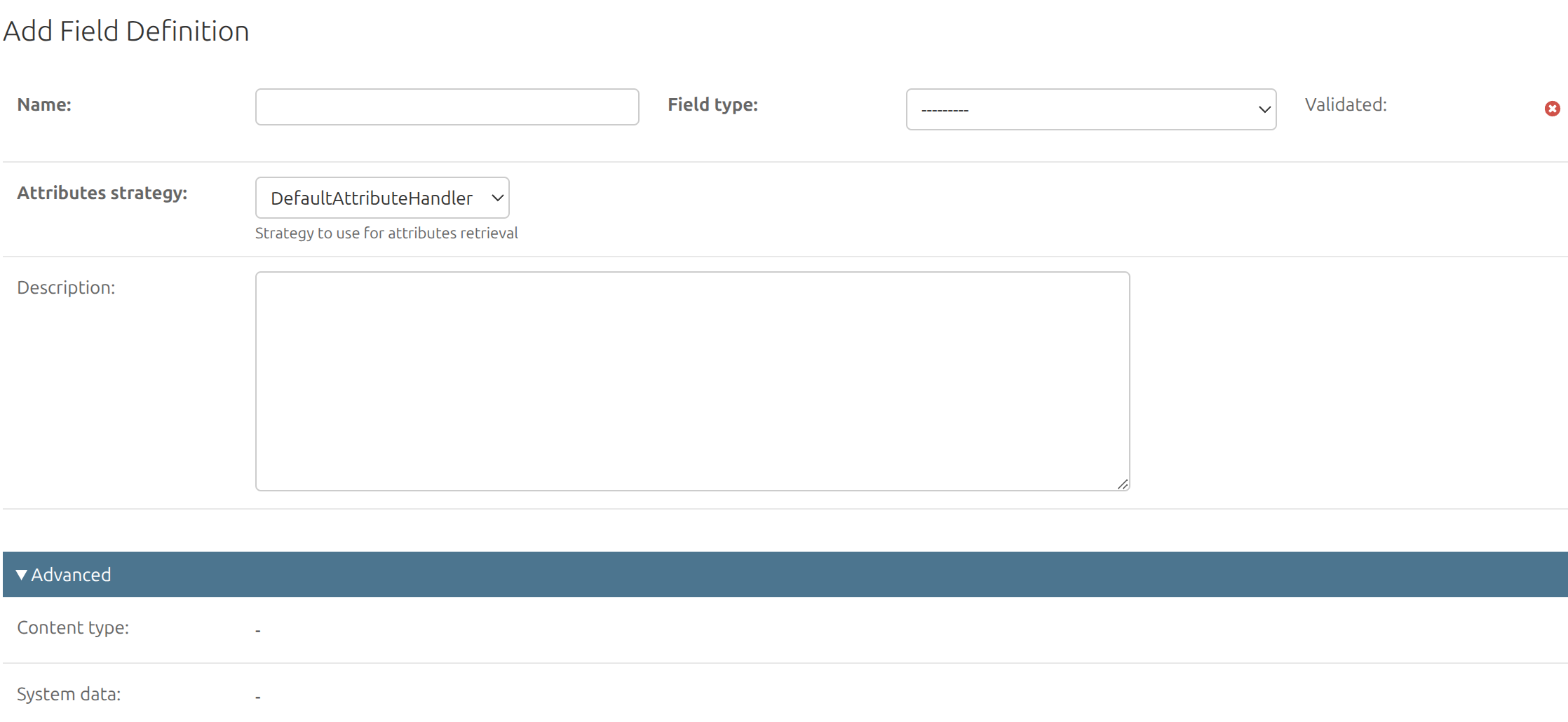
To create a new Field Definition:
- Open Field Definitions, click Add Field Definition.
- Fill in Name, select Field type, add Description if needed.
- Save the record.
Changing a Field Definition

On the Field Definition change page, use:
- Configure to edit attributes for the selected field type;
- Test to open a simple form and check how the field behaves with real input.
Field attributes depend on the selected field type. Some attributes are common, such as required or help_text; others are type-specific, for example max_length, min_length, allow_empty_file, etc.
Fieldset
A Fieldset is a group of Flex Fields that can be reused in a DataChecker.
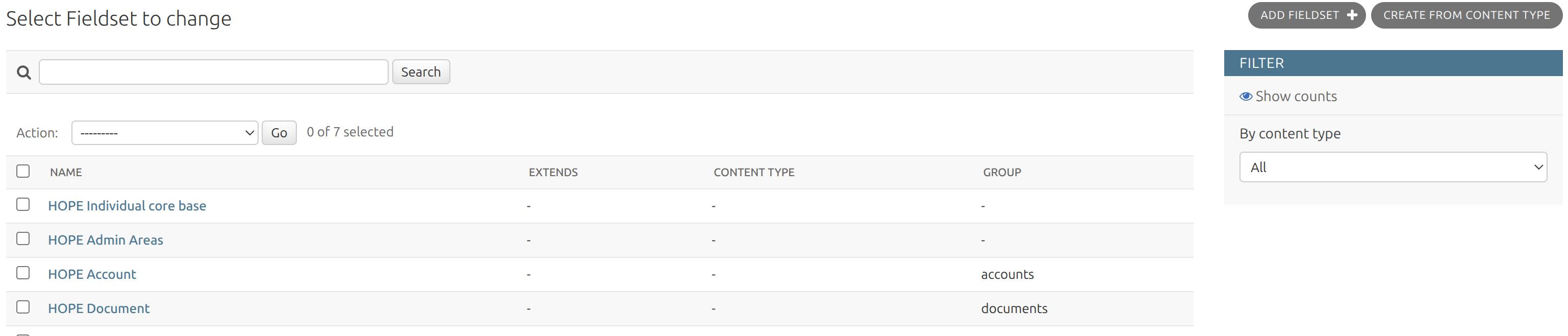
Creating a Fieldset
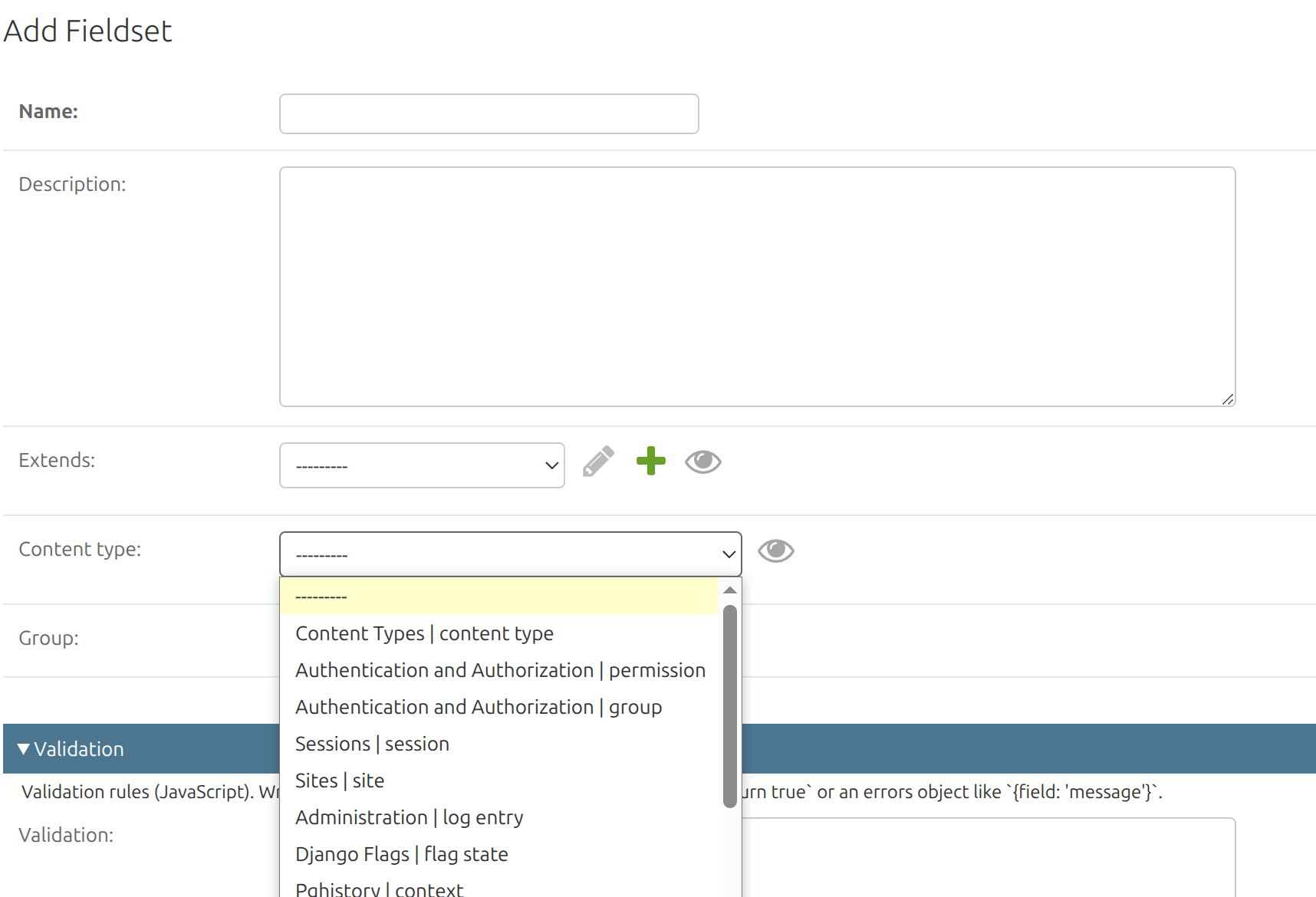
To create a Fieldset manually:
- Open Fieldsets, click Add Fieldset.
- Fill in Name and Description if needed.
- Set Extends only if this Fieldset should reuse fields from another Fieldset.
- Set Content type only if this Fieldset is based on a Django model.
- Set Group if fields should be grouped in the generated beneficiary data.
- Add Validation only if cross-field validation is needed.
- Save the record.
You can also use Create from Content Type to generate a Fieldset from an existing Django model form.
Changing a Fieldset
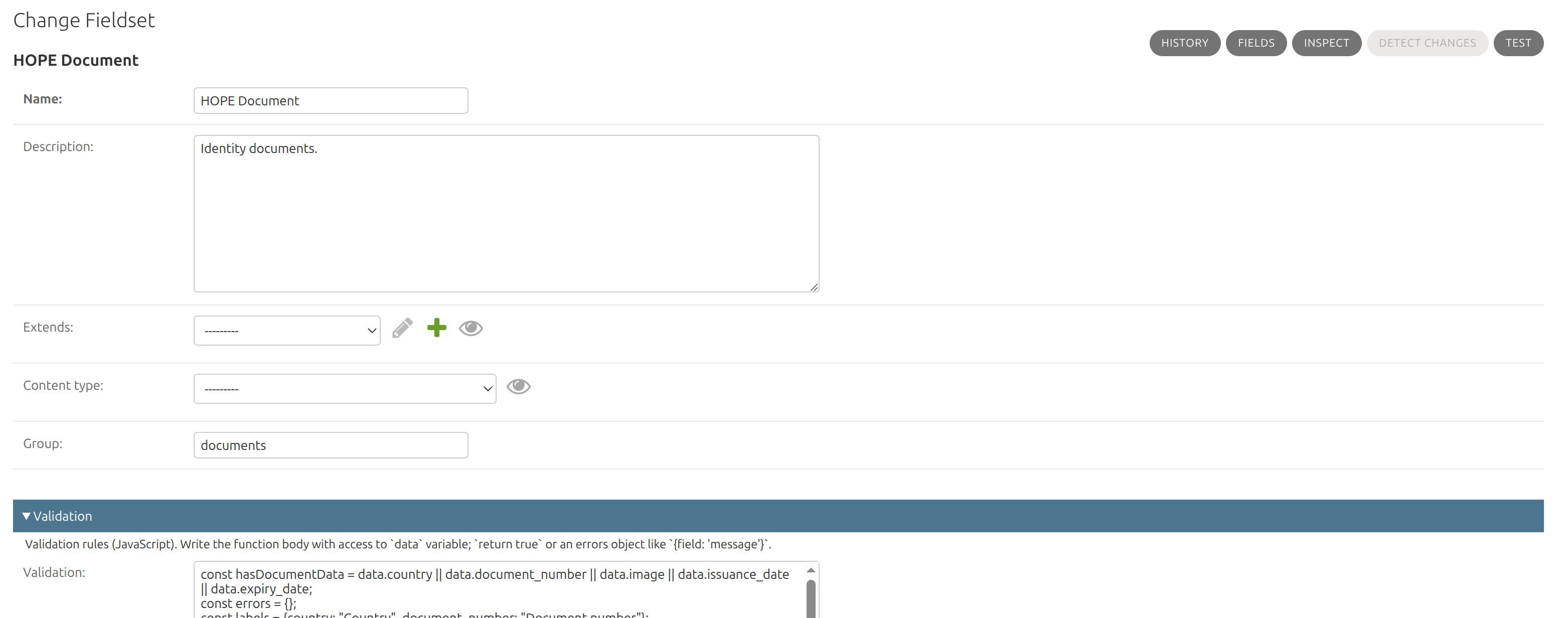
On the Fieldset change page, use:
- Fields to add, edit, or delete Flex Fields in this Fieldset;
- Inspect to review the generated field structure and final field attributes;
- Test to open a generated form with all fields from this Fieldset and validate sample input before using the Fieldset in a DataChecker;
- Detect changes to compare the Fieldset with its Content Type, when Content Type is configured.
Fields
Use Fields to manage Flex Fields inside the Fieldset.
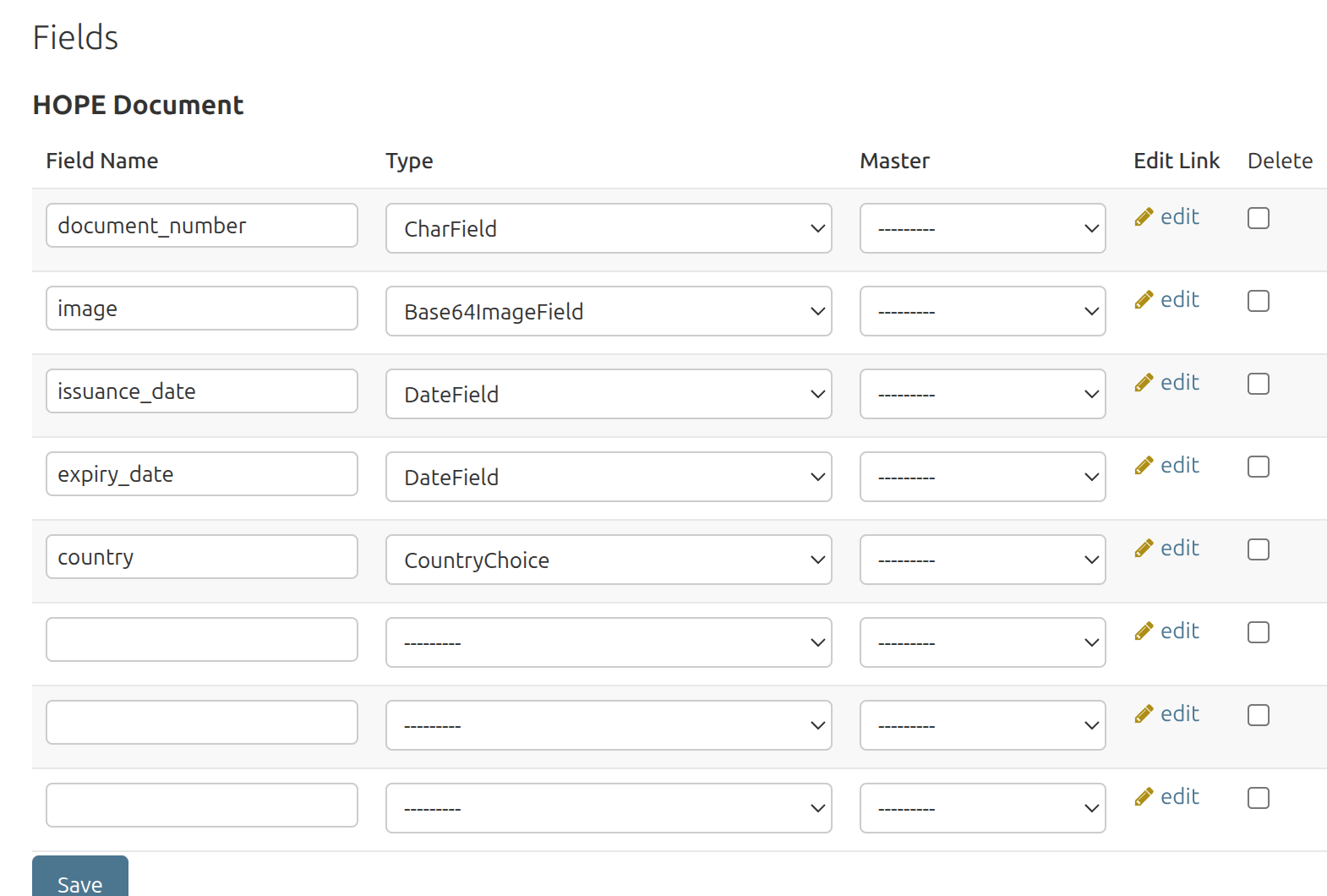
Each row defines the field name, field type, optional Master field, edit link, and delete flag.
Group
Use Group when fields from this Fieldset should be grouped in the generated beneficiary data. For example, the HOPE Document Fieldset uses the documents group.
Leave Group empty for root-level fields.
Validation
Fieldset validation is used for cross-field checks. Validation rules are written in JavaScript and have access to the data variable.
Return true when the data is valid, or return an errors object when validation fails.
Example: makes country and document_number required when any document data is provided.
const hasDocumentData = data.country || data.document_number || data.image || data.issuance_date || data.expiry_date;
const errors = {};
const labels = {country: "Country", document_number: "Document number"};

if (hasDocumentData) {
  for (const field of ["country", "document_number"]) {
    if (!data[field]) {
      errors[field] = `${labels[field]} is required when document data is provided.`;
    }
  }
}

return Object.keys(errors).length ? errors : true;
Use field names from the Fieldset, not display labels.
Flex Field
A Flex Field is the actual field used in beneficiary data. It links a technical field name with a Field Definition and a Fieldset.

The field name is used in imports, validation, and beneficiary data.
Creating a Flex Field
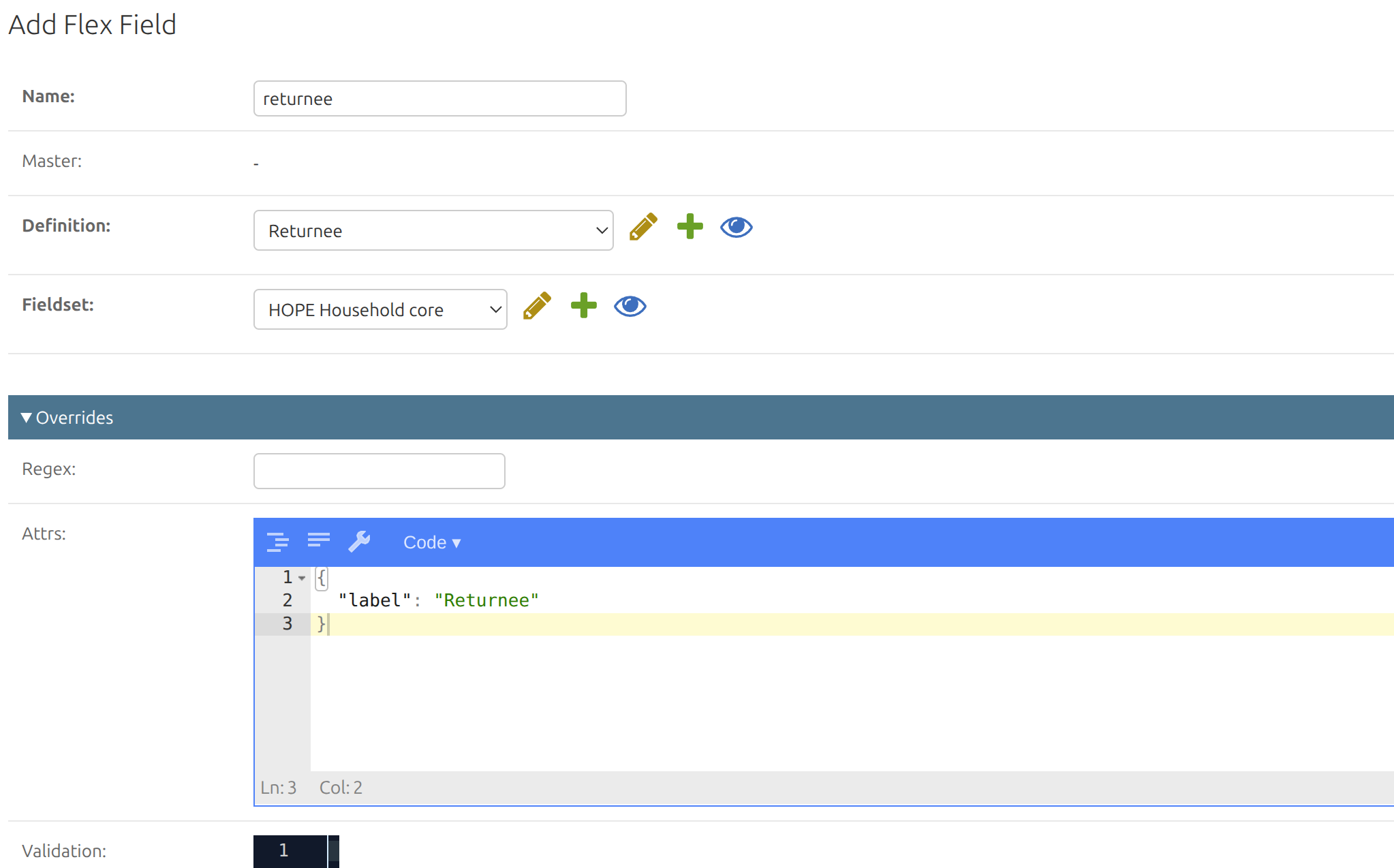
To create a new Flex Field:
- Open Flex Fields, click Add Flex Field.
- Fill in Name using the field name expected by HOPE Core.
- Select Definition and Fieldset.
- Set Master only for dependent fields, when available values depend on another field in the same Fieldset.
- Use Overrides only if the selected Field Definition needs to be adjusted for this specific field:
- Regex to replace the default regex validation;
- Attrs to override or extend field attributes;
- Validation to replace the default JavaScript validation.
- Save the record.
Changing a Flex Field
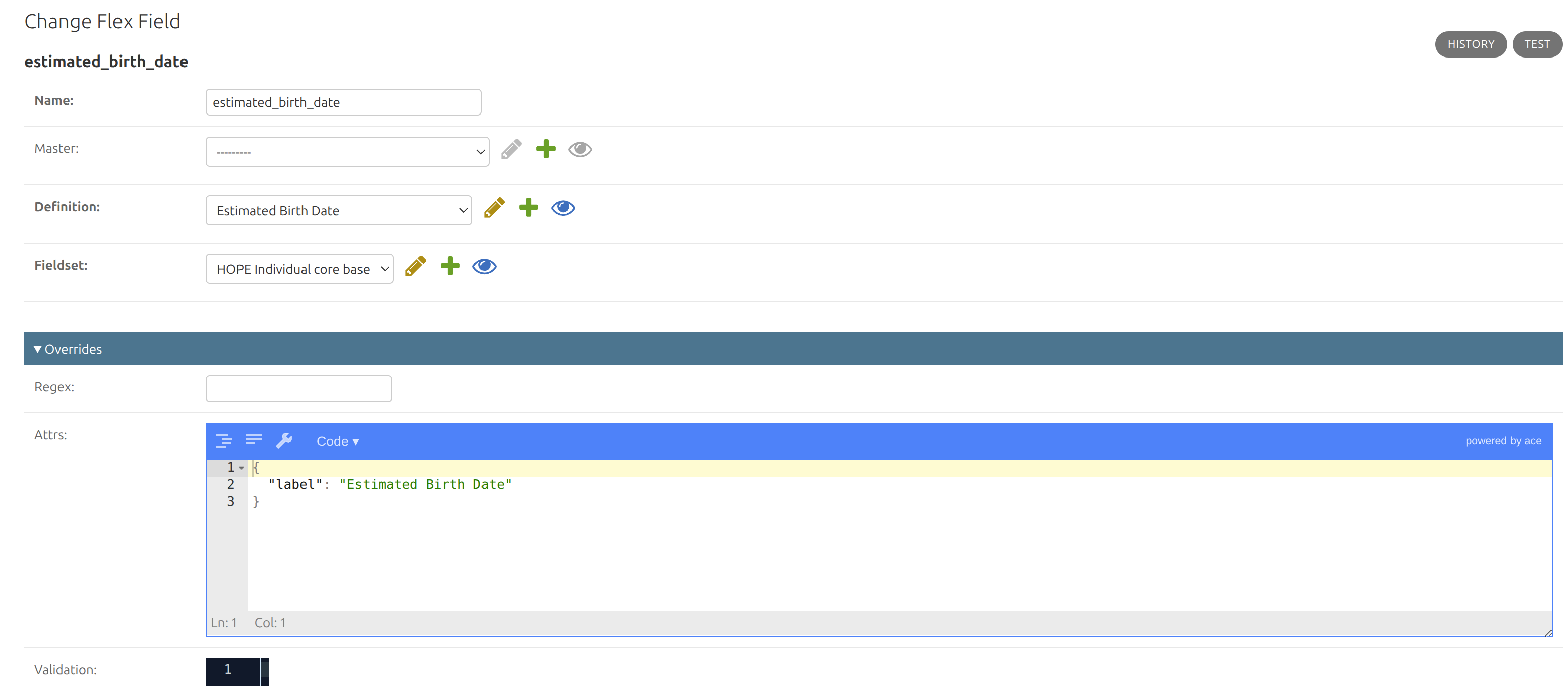
On the Flex Field change page, use Test to open a simple form and check how the field behaves with real input.
Do not change Name after data has already been imported unless the same change is also expected by HOPE Core.
DataChecker
A DataChecker is the final validation configuration used by a Program. It combines one or more Fieldsets.

Creating a DataChecker
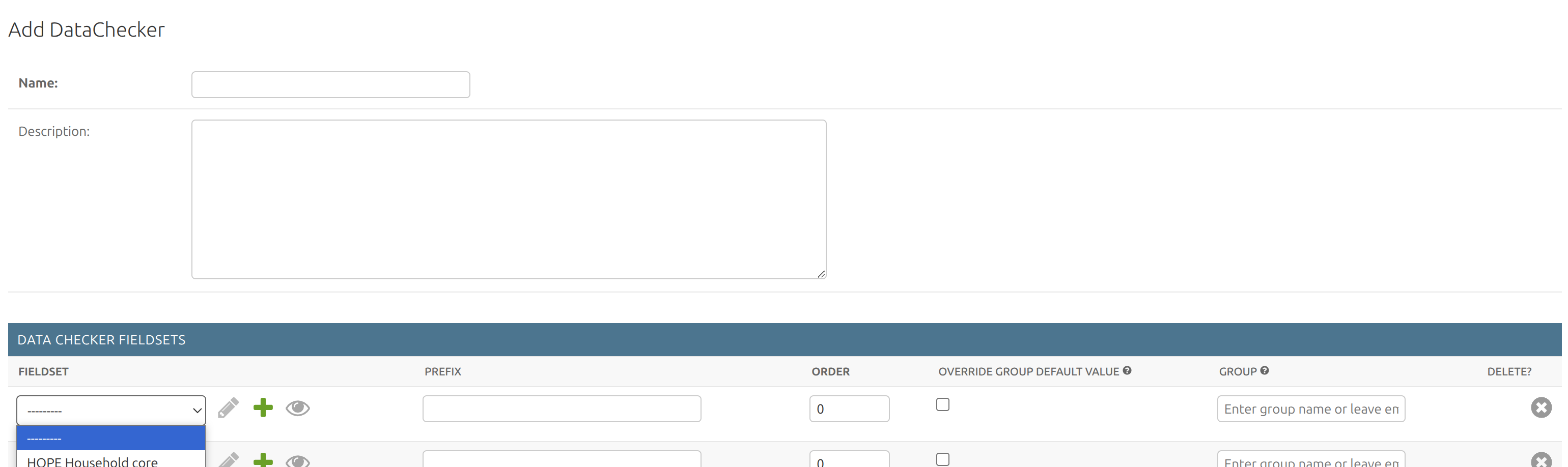
To create a new DataChecker:
- Open DataCheckers, click Add DataChecker.
- Fill in Name and Description if needed.
- Add the required Fieldsets in Data Checker Fieldsets.
- Set Prefix only when field names should be namespaced.
- Set Order to arrange Fieldsets in this DataChecker configuration.
- Use Override group default value only when the Fieldset group should be replaced.
- Save the record.
Field names inside one DataChecker must be unique. Only one Identity Field is allowed per DataChecker.
Prefixes
Prefix changes field names from the selected Fieldset inside this DataChecker.
If the Fieldset has a field number:
| Prefix | Resulting field name |
|---|---|
| empty | number |
national_id_ |
national_id_number |
national_id_%s |
national_id_number |
%s_national_id |
number_national_id |
Use a simple prefix like national_id_ when the field name should only be prefixed. Use %s only when the original field name must be inserted into a custom position.
Use Prefix only when fields from this Fieldset must be namespaced or when the same Fieldset is used more than once in one DataChecker.
Groups
Group defines where Fieldset data appears in the generated beneficiary structure.
Example: the HOPE Document Fieldset has the default group documents.
If this Fieldset contains document_number, the generated structure is:
{
  "documents": {
    "document_number": "ABC123"
  }
}
Use Override group default value when this DataChecker needs different grouping for the same Fieldset.
| Override group default value | Group | Result |
|---|---|---|
| unchecked | ignored | Use Fieldset default group: documents |
| checked | identity_documents |
Use custom group: identity_documents |
| checked | empty | Put fields at root level |
Root-level result:
{
  "document_number": "ABC123"
}
Changing a DataChecker
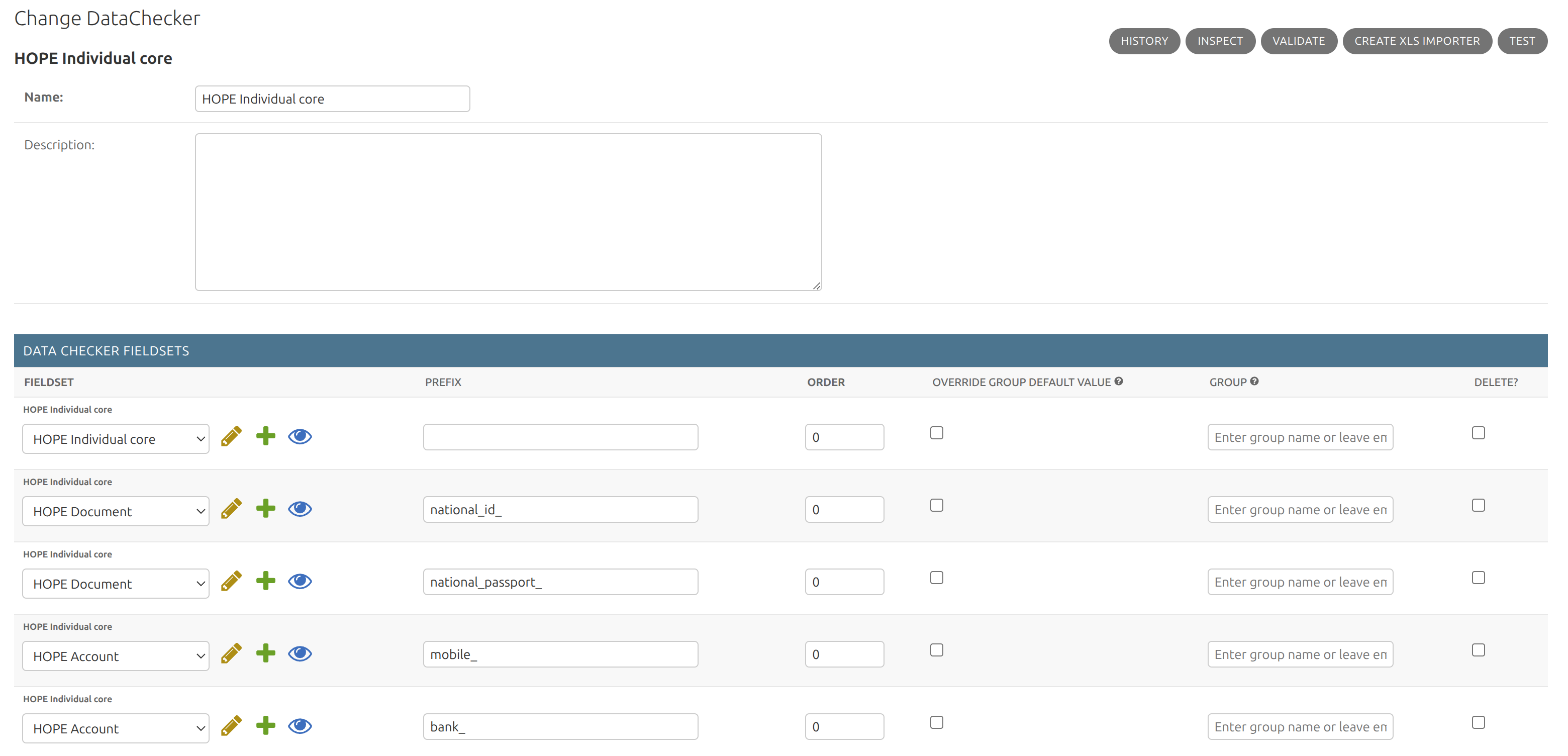
On the DataChecker change page, use:
- Inspect to review the generated field structure and final field attributes;
- Validate to upload a sample import file and check how its rows are validated;
- Create XLS importer to download an XLSX import template generated from the DataChecker fields;
- Test to open a generated form with all fields from this DataChecker and validate sample input.
Required HOPE Core fields
If a field is required by HOPE Core, the corresponding DataChecker field must be marked as required.
For a Flex Field, make sure the final field attributes contain:
{
  "required": true
}
This can be configured on the Field Definition when the field is always required, or in the Flex Field Overrides › Attrs when the field should be required only in this specific configuration.
Use Inspect on the DataChecker to check the final field attributes before assigning the DataChecker to a Program.
Best practices
- Reuse existing Field Definitions and keep Fieldsets focused.
- Keep technical field names stable after data has already been imported.
- Use prefixes and groups only when the beneficiary data structure requires them.
- Use Fieldset validation only for cross-field checks.
- Test the configuration with sample data before assigning it to a Program or using it in production.