Glossary
Surface and define the key terms of your book.
A glossary helps learners meet new vocabulary with confidence. ADT Studio identifies key terms in your content and generates a pedagogically aligned glossary — definitions written to support learning, not just dictionary entries.
Decisions to make
- Which terms deserve an entry? Specialised, technical, or curriculum-relevant vocabulary — yes. Everyday words — usually not. Review the generated selection with your audience in mind.
- Is the definition at the right level? A definition written above the reading level of the audience defeats its purpose. Check that the language matches the learners.
Configure and generate
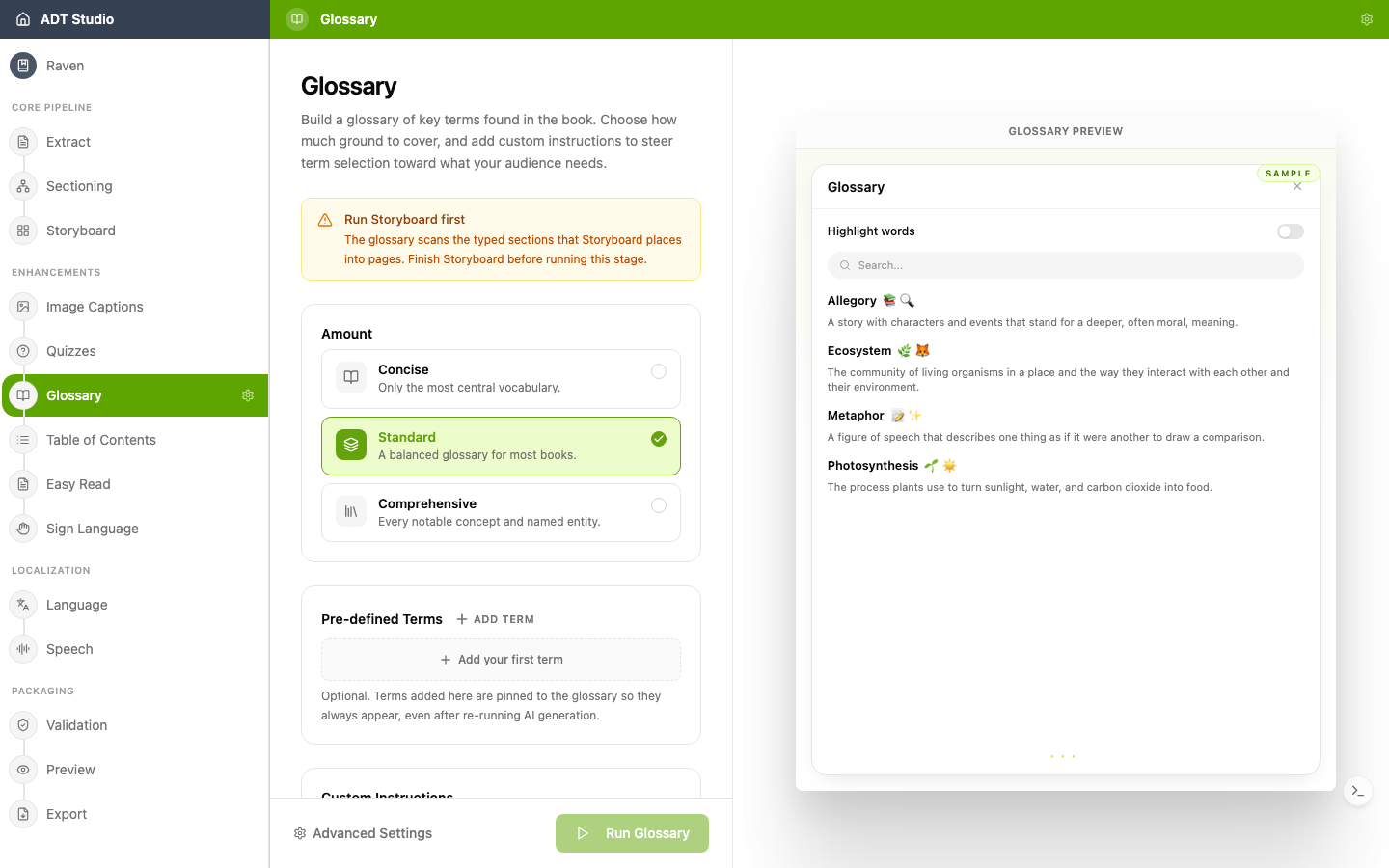
Like the other Enhance stages, Glossary needs Storyboard finished first. Once it's ready, open the Glossary stage and set:
- Amount — Concise, Standard, or Comprehensive — how much vocabulary to cover.
- Pre-defined Terms (optional) — pin specific words so they always appear, even after you regenerate.
- Custom Instructions (optional) — steer selection or tone.
A live sample preview on the right shows example terms and definitions, with a toggle to highlight where terms would appear in the book. When you're ready, select Run Glossary.
Review and edit
Once the glossary is generated, switch between All, Active, and Pruned terms (each with a count), plus a Manual only toggle to see just the terms you added yourself. Search by term or definition, and sort alphabetically or by how often a term occurs in the book. Each entry shows whether it was added manually or generated by AI, plus its occurrence count.
Use Add Term to define your own vocabulary. To act on the decisions above, Prune a term you don't want — it's hidden from the output and skipped on future regenerations, without deleting your other edits — or Remove a manually added term outright.