
Table of contents
Give readers a map of the book.
The table of contents is built from the sections Storyboard places into pages — which in turn come from the structure you confirmed during Sectioning. It gives every reader — and every screen reader — a navigable map of the book.
Decisions to make
- Does it reflect the real book? If something looks wrong here — missing chapters, odd nesting, wrong titles — the cause is almost always upstream, in sectioning or storyboard, not in the table of contents itself. Fix the structure there and the table of contents follows.
- Is the depth right? A table of contents with every tiny sub-heading can be harder to navigate than one with a clear, shallow structure.
- Verbatim or rephrased? That's exactly what TOC Mode decides — see below.
Configure and generate
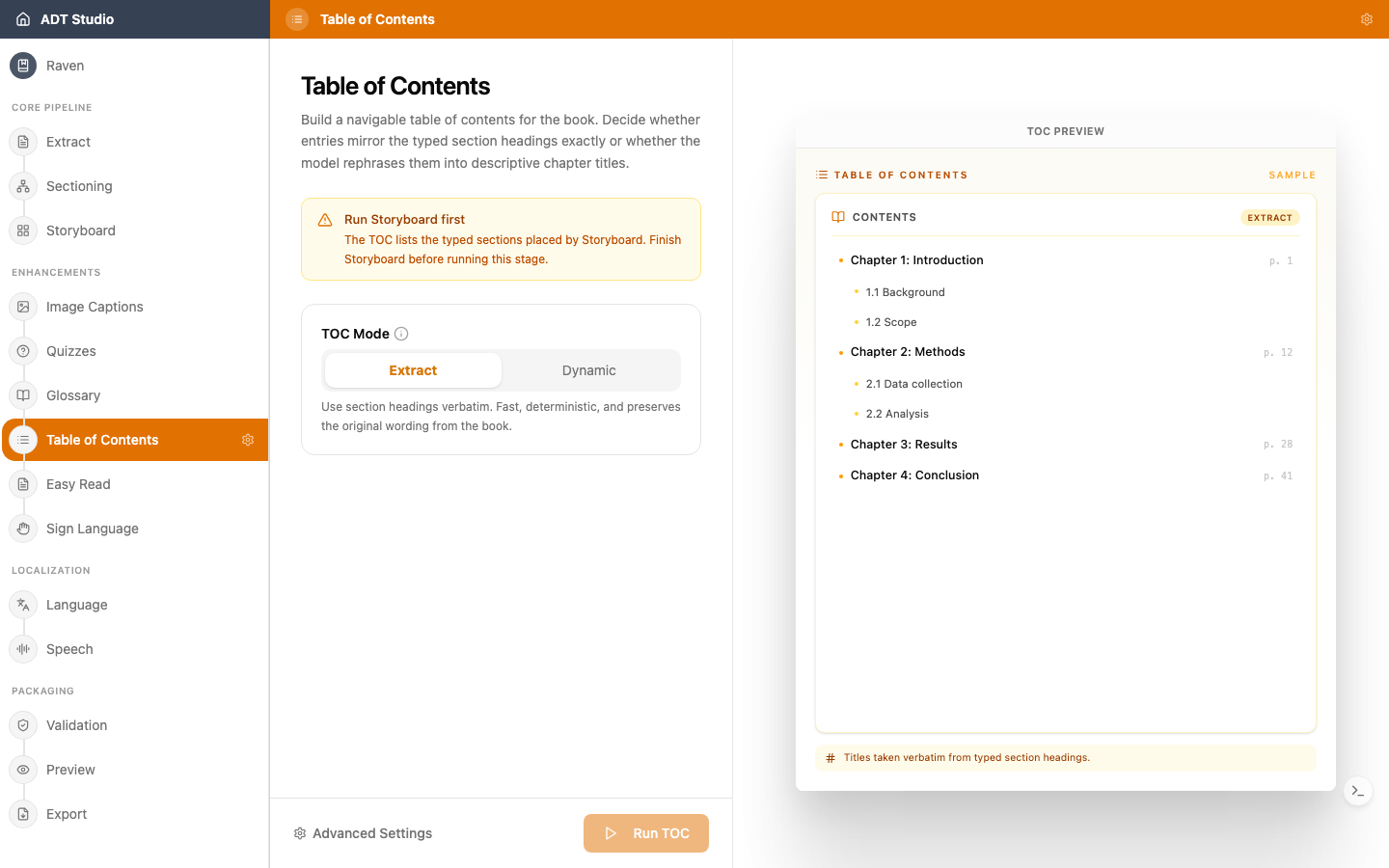
Table of Contents needs Storyboard finished first. Once it's ready, open the Table of Contents stage and choose a TOC Mode:
- Extract — use section headings verbatim. Fast, deterministic, and preserves the original wording.
- Dynamic — let the model write descriptive chapter titles from each section's content. Best for storybooks, or when headings are missing.
A live sample preview on the right shows a nested contents list matching the mode you picked. When you're ready, select Run TOC.
Review and edit
Once the table of contents is generated, search entries by title, and use Add entry to insert one manually. Each row's title is editable in place, and the indent arrows move it up or down a nesting level (three levels deep) — use Remove to delete one entirely.
Every entry links to a section of the book — the link picker lets you search for and reassign that section, and the external-link icon next to it opens the linked page in a new tab so you can confirm it points where it should.