Biometric Photo Error Tickets
When biometric deduplication runs on a Registration Data Import, the deduplication engine cannot always read a beneficiary's photo — the image may contain no face, more than one face, or be too poor in quality to compare. Previously these findings landed among the Needs Adjudication tickets, where they were confusing: there is no duplicate to adjudicate, only a photo that has to be replaced.
These findings are now routed to their own Data Change ticket type — Biometric Photo Error — whose sole purpose is to have an operator upload a valid photo for that individual.
How the tickets are created
Photo Error tickets are created automatically by the system during the biometric deduplication step of an RDI. They cannot be raised manually — the issue type is deliberately hidden from the New Ticket form.
After deduplication finishes, the engine's findings are split in two:
- Findings that represent a genuine biometric match go to Needs Adjudication tickets, as before.
- Findings that represent an unreadable photo go to Biometric Photo Error tickets.
Which errors produce a ticket
The deduplication engine reports a status code with every finding. Four of them mean "the photo could not be used" and produce a Photo Error ticket:
| Code | Meaning |
|---|---|
| 412 | No face detected |
| 416 | Face below confidence |
| 418 | Image quality below threshold |
| 429 | Multiple faces detected |
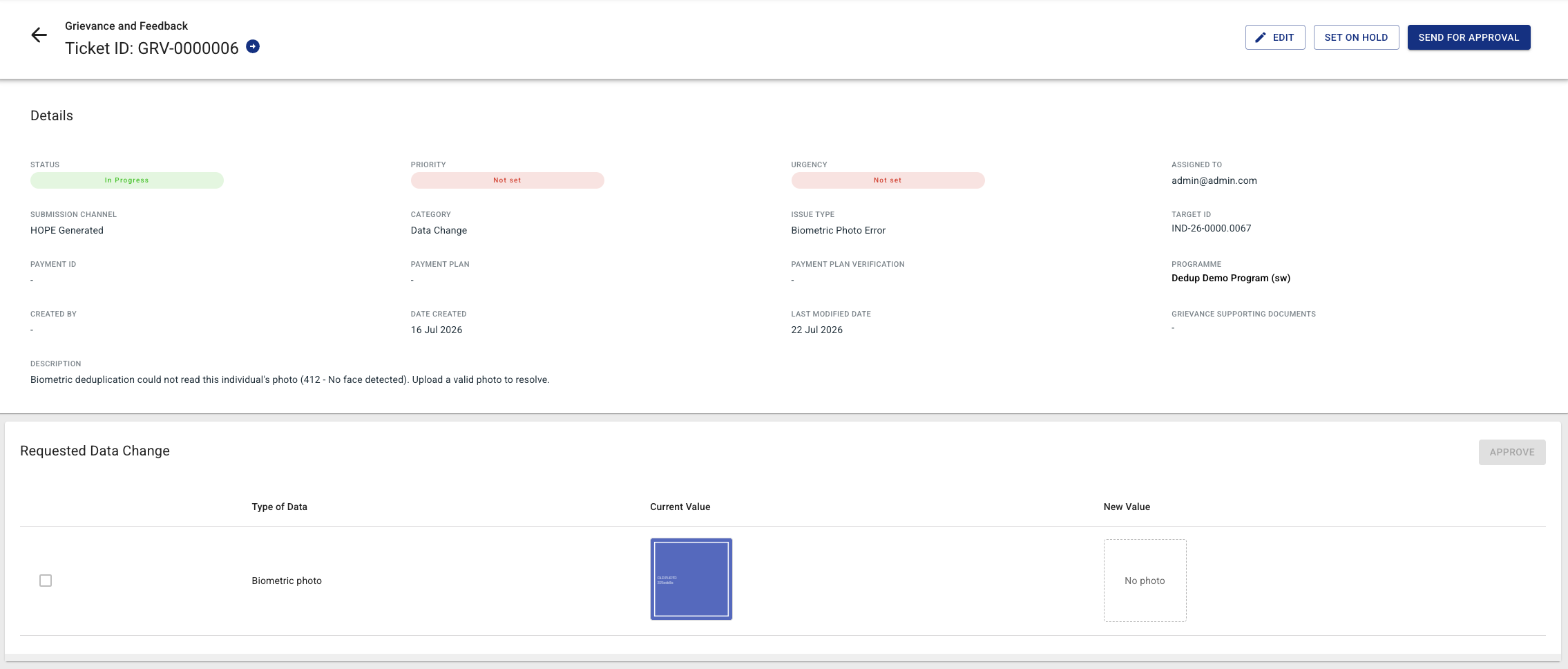
The specific code is recorded in the ticket description, so the operator can see why the photo was rejected before opening it — for example:
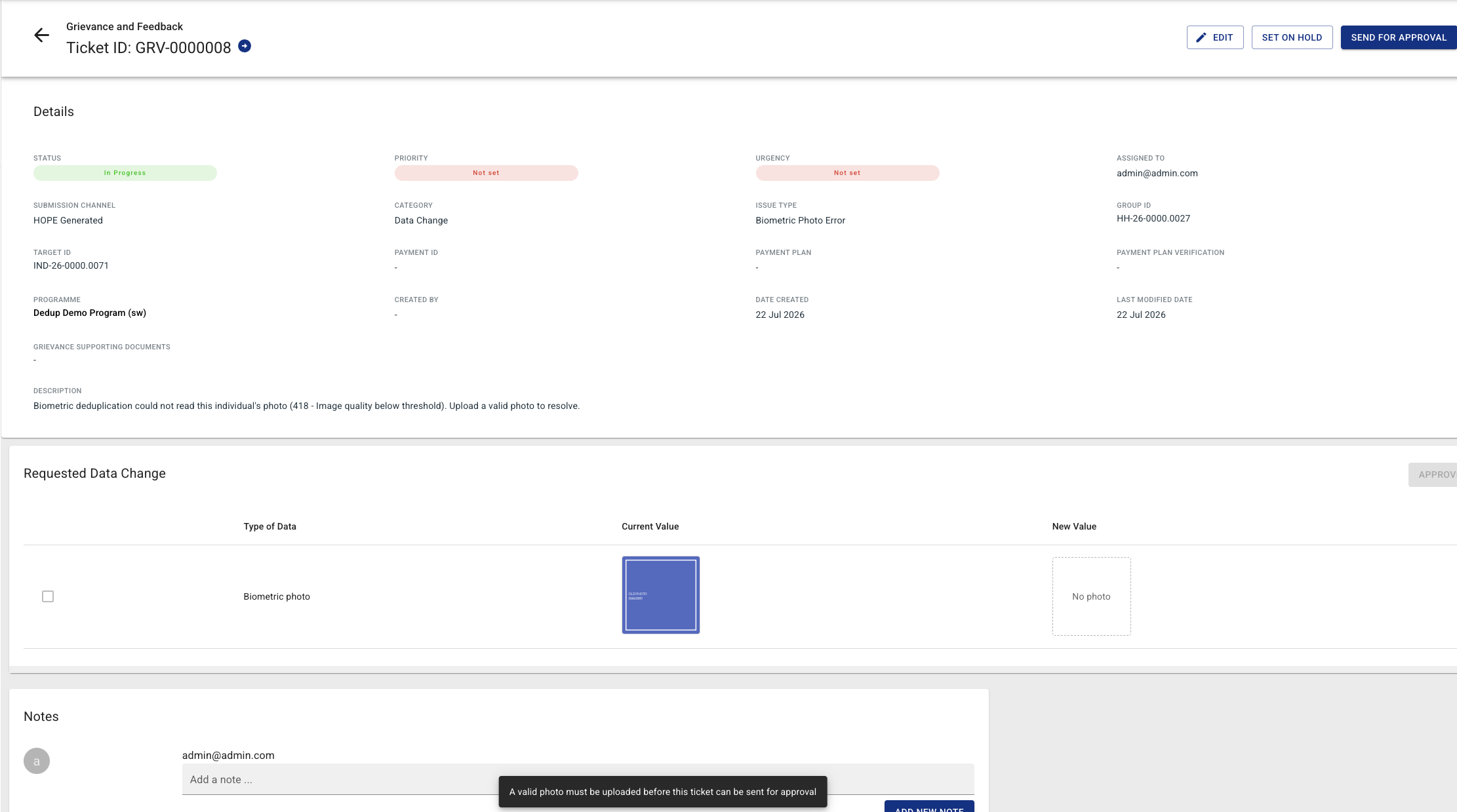
Biometric deduplication could not read this individual's photo (412 - No face detected). Upload a valid photo to resolve.
What the ticket looks like
A Biometric Photo Error ticket carries the following properties:
| Field | Value |
|---|---|
| Category | Data Change |
| Issue Type | Biometric Photo Error |
| Type | System-Generated |
| Submission channel | HOPE Generated |
Note the unique combination: the ticket sits in the Data Change category — because closing it changes beneficiary data — but it is classified as System-Generated, because no operator raised it.
Until a replacement is uploaded, the Requested Data Change section shows the individual's current (rejected) photo and an empty new value.
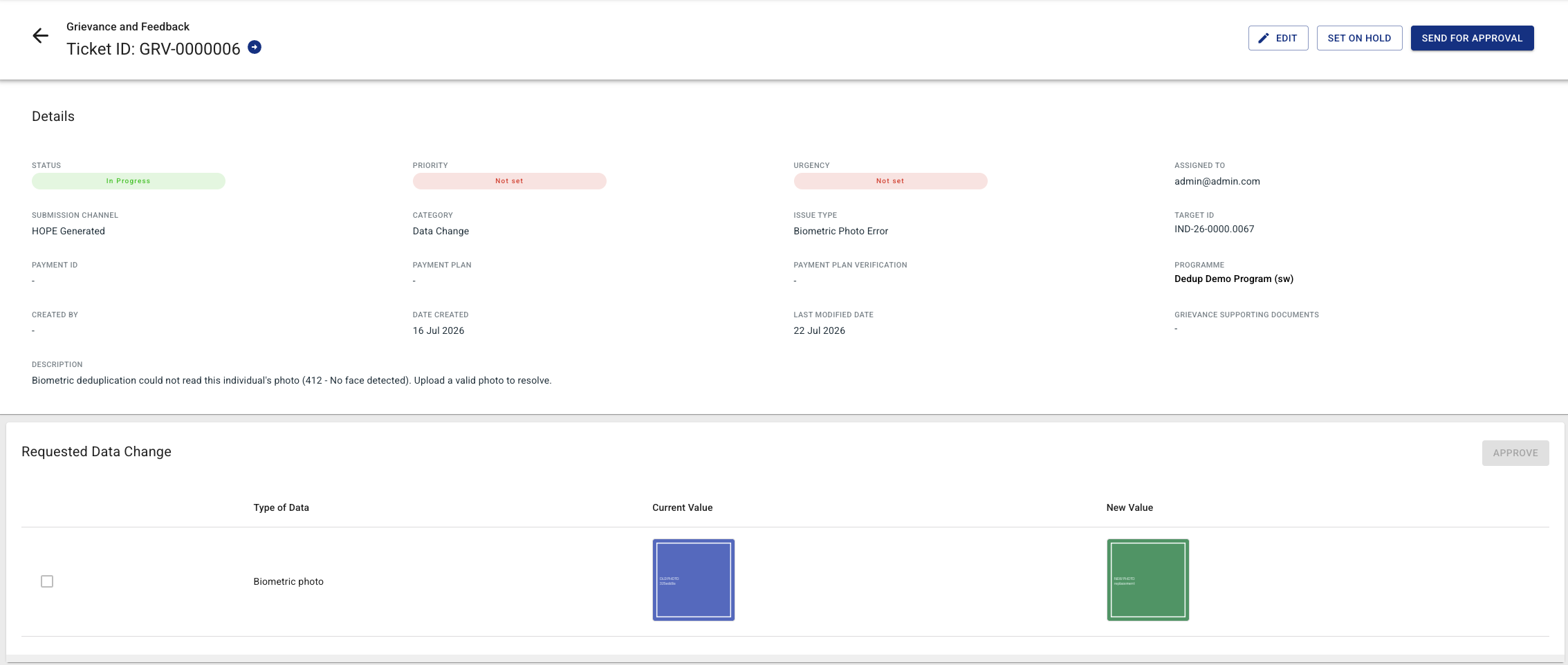
Once a photo has been uploaded, both values are shown side by side — the rejected photo as the current value, the replacement as the new value.
Finding them in the list
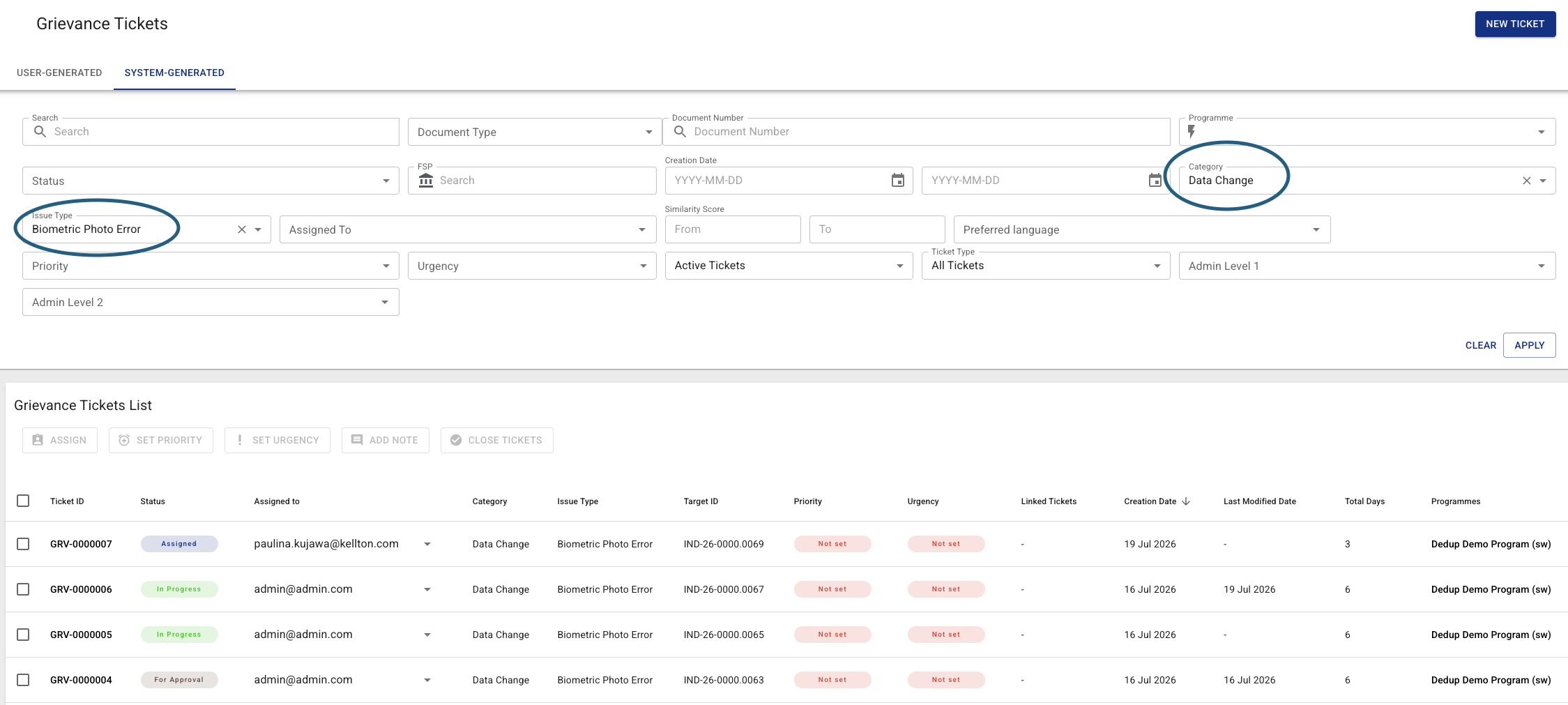
Photo Error tickets are listed under the SYSTEM-GENERATED tab of the Grievance list. To narrow the list down to them, set Category to Data Change and then Issue Type to Biometric Photo Error.
Resolving a ticket
Photo Error tickets follow the standard Data Change approval flow, with two differences at the start.
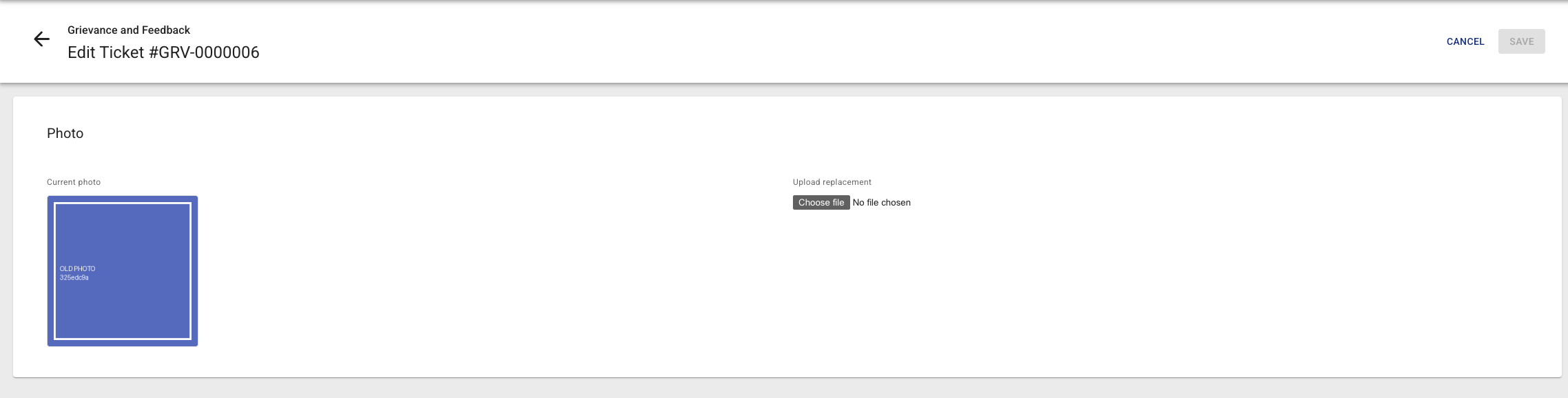
Editing opens a dedicated photo upload page rather than the general grievance edit form, since there is only one field to change. The page shows the individual's current (rejected) photo next to an upload field, and Save stays disabled until a new file is chosen.
The ticket cannot be sent for approval until a photo has actually been uploaded. Attempting it is blocked with the message "A valid photo must be uploaded before this ticket can be sent for approval", and the ticket stays In Progress.
From For Approval onward the ticket behaves like any other Individual Data Update: the reviewer approves the change in the Requested Data Change section, and closing the ticket applies the new photo to the individual's record.