Payment Reconciliation
Payment reconciliation records how much was delivered for each Payment. This guide covers manual XLSX reconciliation from a Payment Plan Group. It does not cover Payment Gateway automatic API reconciliation.
Prepare the file
- Open the Payment Plan Group.
- Export the delivery XLSX. A Payment included in the export is marked as sent to the Financial Service Provider (FSP) and becomes ready for reconciliation.
- Enter a value in
delivered_quantityfor each Payment you want to reconcile. - Do not change
payment_idor add the same Payment more than once.
The file may contain some or all Payments from the group. Payments not included in the file are not changed.
Delivered quantity values
| XLSX value | Result |
|---|---|
| Full entitlement | Distribution successful |
More than 0, but less than the entitlement |
Distribution partially successful |
0 |
Not distributed |
-1 |
Distribution error; the delivered quantity is stored as empty |
| Empty | Depends on the selected upload mode |
Text, dates, values above the entitlement, and negative numbers other than -1 are rejected.
Normal reconciliation
Use normal mode for the first reconciliation:
- Open the Payment Plan Group and select Upload Reconciliation.
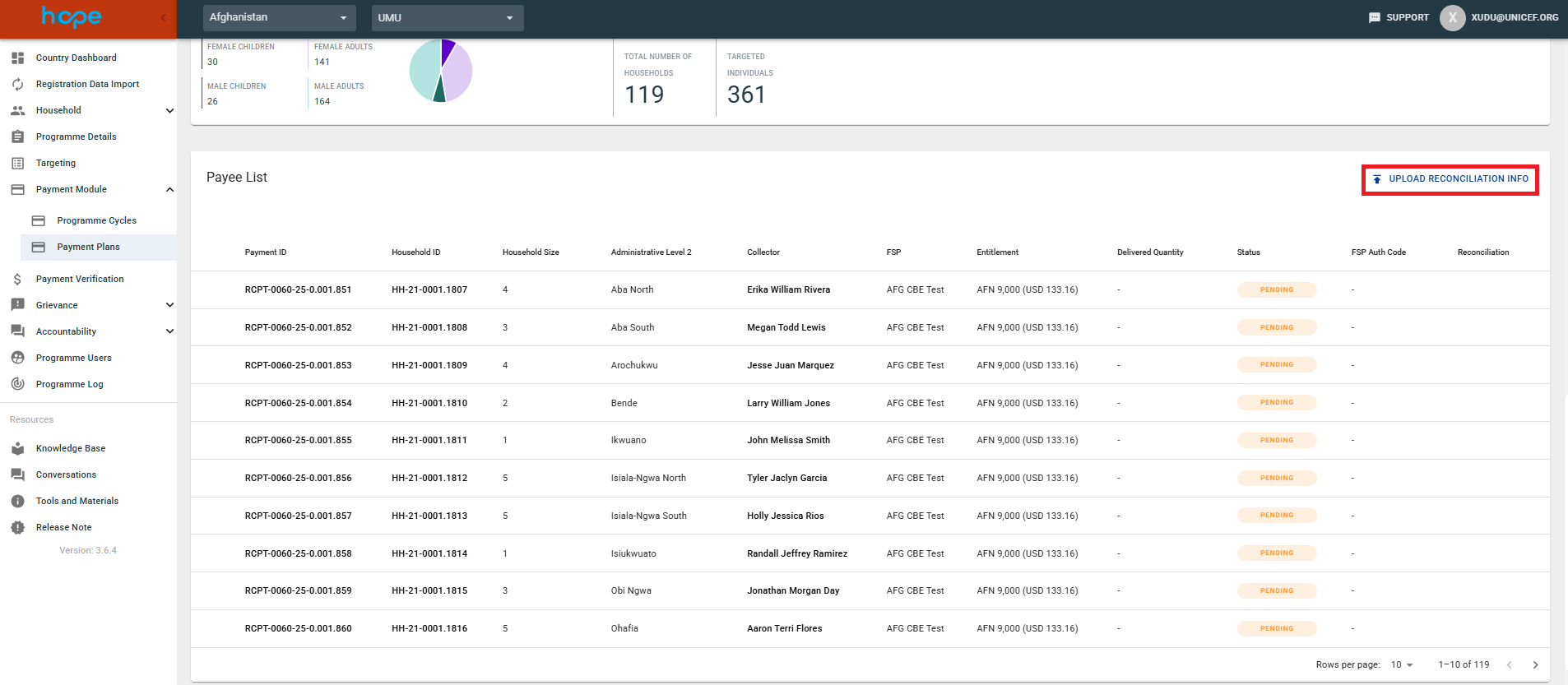
- Select the completed XLSX without enabling overwrite.
- Submit the file.
HOPE processes each row as follows:
- An empty delivered quantity is ignored.
- A new valid delivered quantity is imported.
- A quantity that already matches HOPE is ignored, even if other reconciliation values differ.
- A quantity that differs from an existing delivered quantity is a conflict. HOPE rejects the entire file and does not change any Payments.
- A Payment that was not included in a successful delivery export is not eligible and is ignored.
Normal mode does not update FINISHED Payment Plans. Use override mode when a finished plan needs correction.
Correct reconciliation data with override
Override is intended for correcting material errors. It is available only to users with the reconciliation override permission.
- Open Upload Reconciliation.
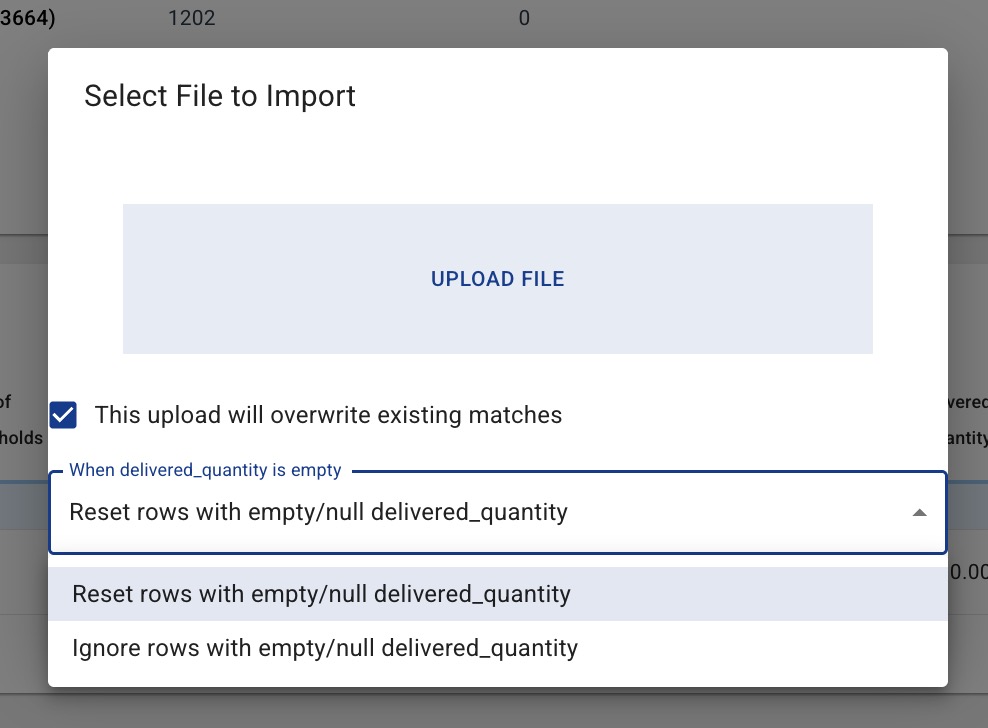
- Enable This upload will overwrite existing matches.
- Choose what HOPE should do when
delivered_quantityis empty. - Select the XLSX and submit it.
For a non-empty delivered quantity, HOPE overwrites the reconciliation data and recalculates the distribution result. This also applies when the quantity is unchanged, allowing other reconciliation values to be corrected.
Empty delivered quantity options
Reset rows with empty/null delivered_quantity is the default. It clears the Payment's distribution result and reconciliation data and returns the Payment to the sent-to-FSP state.
Ignore rows with empty/null delivered_quantity leaves the Payment unchanged.
If a reset makes a FINISHED Payment Plan incomplete, HOPE moves the plan back to ACCEPTED. Its totals are recalculated.
Warning
When override changes a delivered quantity or resets a Payment, HOPE deletes Payment Verification records based on the old quantity, including their related grievance tickets. An override that keeps the quantity unchanged does not delete verification data.
FSP-provided extra fields are preserved during a reset.
Additional reconciliation columns
The XLSX can contain additional reconciliation columns, such as an identity or transaction reference. When HOPE imports a row:
- a non-empty custom value is saved against the Payment Record;
- an empty cell removes the existing value when that column is present in the file;
- a column that is not present in the file leaves its existing value unchanged;
- FSP-owned extra fields are always preserved.
Open the Payment Record after the import to review custom values under Reconciliation Information: Extra Info. For example, an FSP identity reference can be compared with the individual's registration-time Identification Key.
CLOSED Payment Plans
A CLOSED Payment Plan is never changed.
- An empty row or a row that matches the stored result is ignored.
- A row that attempts to add or change reconciliation data for a CLOSED plan rejects the entire file.
This is important when reusing an older group XLSX. For example, Plan A may have been reconciled and closed while Plan B still needs reconciliation. The old file may still contain rows for both plans. Leave Plan A's rows empty or unchanged; any attempted change to Plan A stops the import.
File-level validation
The entire file is rejected without changing Payments when it contains:
- different non-empty delivered quantities for an already reconciled Payment;
- duplicate
payment_idrows; - invalid delivered quantities;
- an attempt to change a CLOSED Payment Plan;
- another invalid row.
Fix every reported error and upload the file again.
Review the result
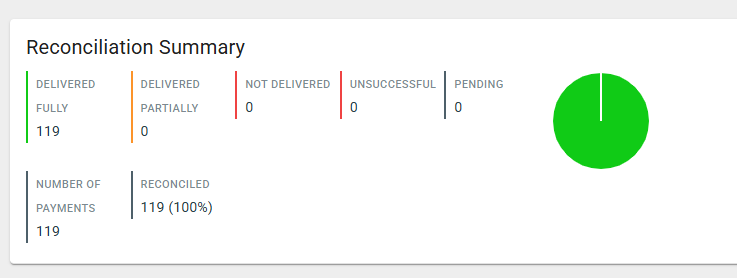
After the import finishes, review the reconciliation summary.
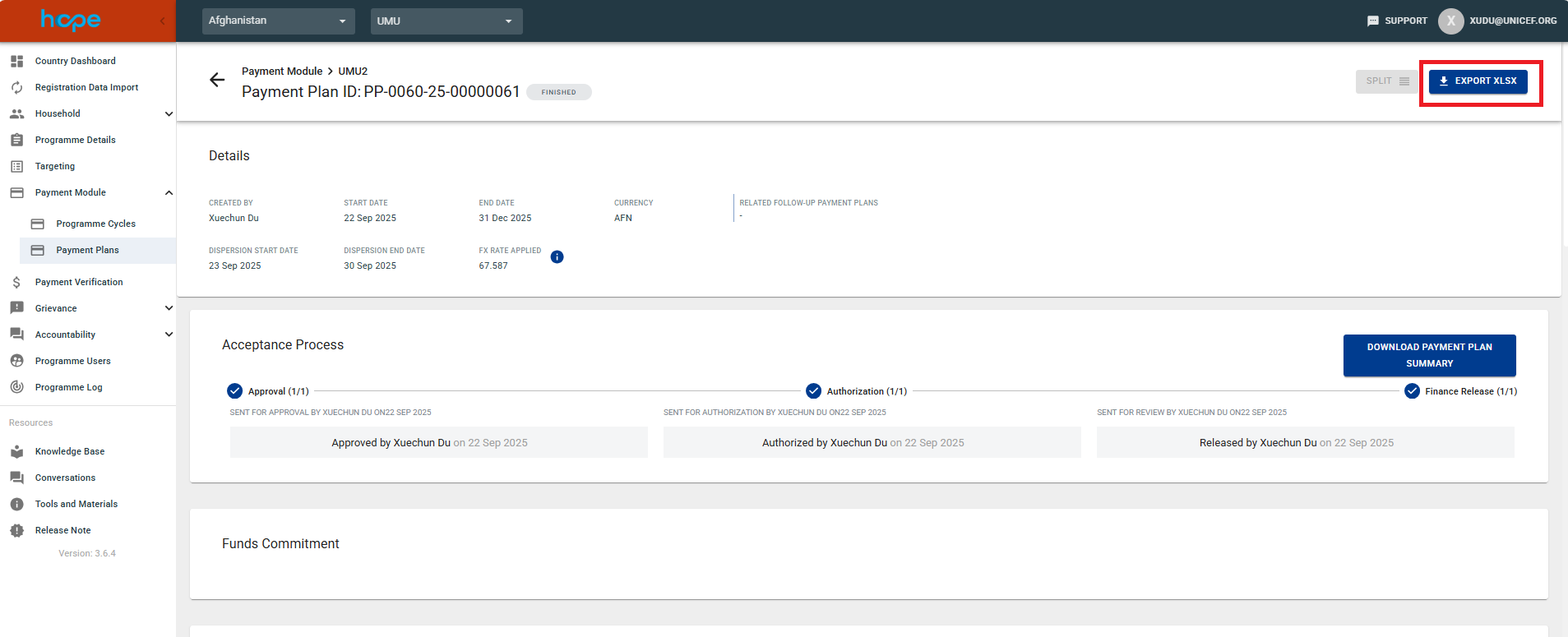
You can also select Export XLSX to export the updated information.
Notifications
- If the initial upload finds quantity conflicts, HOPE shows the row errors and emails the uploader.
- After an accepted file finishes processing, HOPE emails the uploader with the result.
- If background processing finds a new error, HOPE emails the uploader with the available error details.
- If an administrator restarts an import, notifications still go to the original uploader.