Payment Plan Groups, Purposes, Follow-Up Instructions & Top-Ups
This guide covers the new architectural features introduced to the Payment Module: Payment Plan Purposes, Payment Plan Groups, Follow-Up Instructions, and Top-Up Payment Plans.
Payment Plan Purposes
A Payment Plan Purpose defines the intent of a payment — e.g. Food Assistance, Education Support, Cash Transfer. Purposes are global: they are created once by the Core Team and are available to all Business Areas and Programmes.
Who manages Purposes?
Purposes are managed exclusively through the Django admin panel by the Core Team. Programme users cannot create or delete Purposes from the UI.
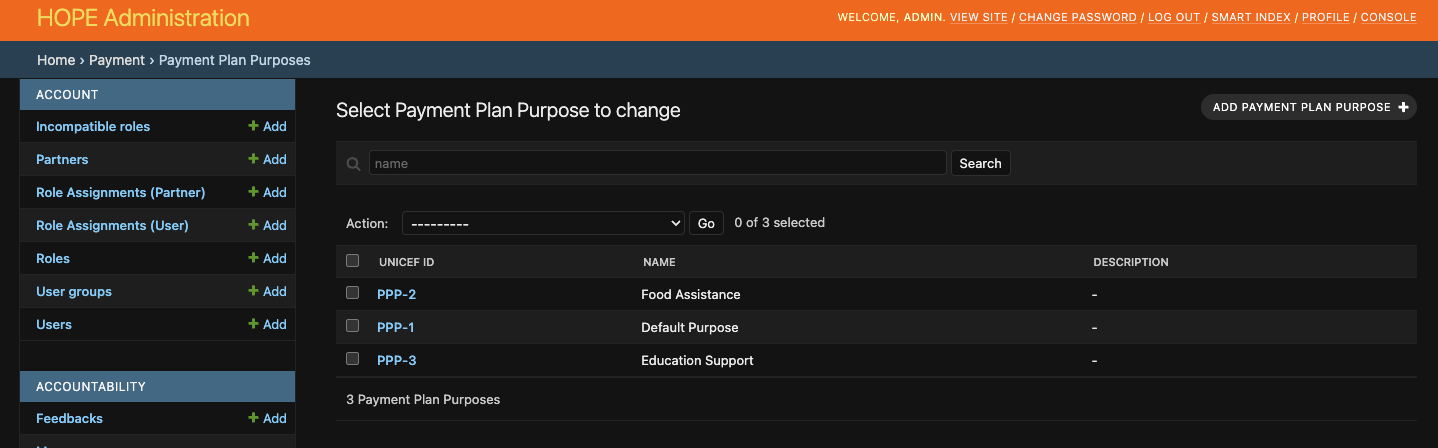
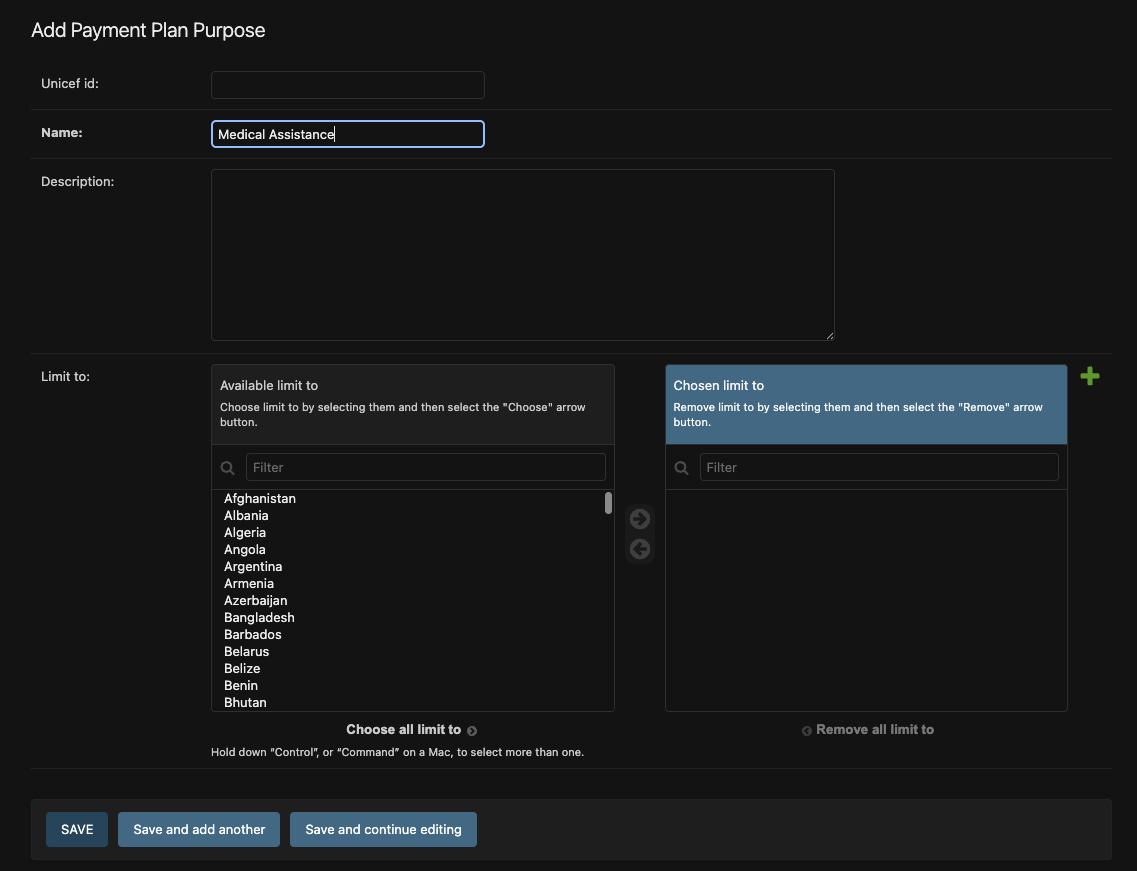
The limit_to field on each Purpose (an optional multi-select of Business Areas) is reserved for future use to restrict a Purpose's availability to specific offices. Until then, all Purposes are visible to all Business Areas.
How Purposes are assigned
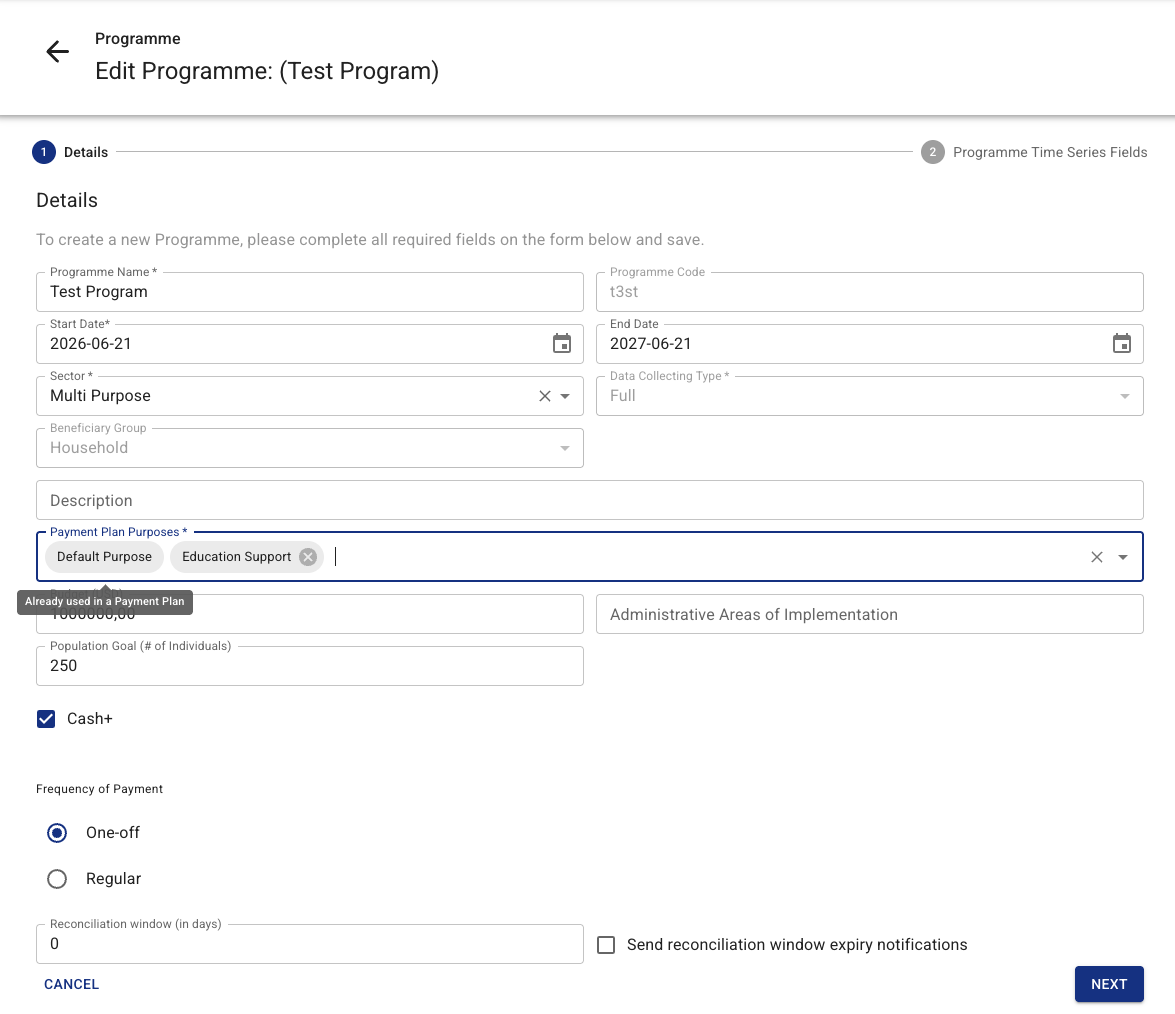
At Programme level: When creating or editing a Programme, users select one or more Purposes for it (minimum 1, maximum 10). Purposes can be added or removed on update — but a Purpose can only be removed if no Payment Plan in that Programme currently uses it.
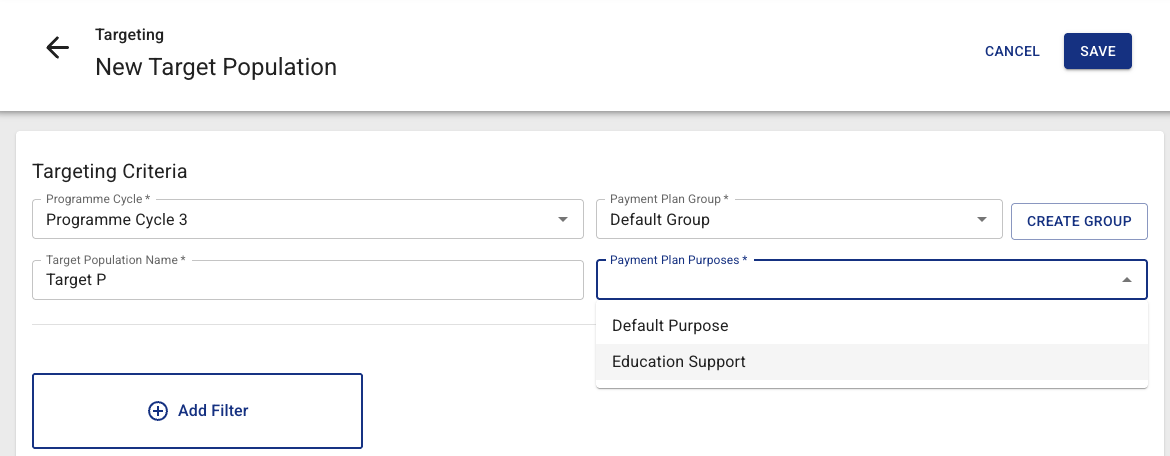
At Payment Plan level: Purposes are selected during Target Population creation (the first step of the payment plan workflow). Users pick one or more Purposes from those already assigned to the parent Programme (minimum 1). After the Target Population has been created, Purposes may only be edited on the most recently created plan in that cycle. Older plans' Purposes are locked.
Follow-Up, Top-Up, and Top-Up Amendment plans inherit Purposes automatically from their source plan — users do not select Purposes when creating these child plan types.
Why Purposes matter for conflict detection
Two Payment Plans in the same Programme Cycle conflict for a given household if they share at least one Purpose. A household that is already entitiled in Plan A (Food) cannot appear in Plan B (Food) — but it can appear in Plan B (Education) because the Purposes are disjoint.
| Scenario | Allowed? |
|---|---|
| Plan A [Food], Plan B [Education] — same household in both | ✅ Yes |
| Plan A [Food, Education], Plan B [Food] — same household in both | ❌ No (Food overlaps) |
| Plan A [Food], Plan B [Food] — same household in both | ❌ No |
Payment Plan Groups
A Payment Plan Group is a container that collects one or more Payment Plans within the same Programme Cycle. It enables batch operations: exporting all plans as a single combined XLSX file and sending them to the Payment Gateway as a unit.
Every Programme Cycle automatically receives a group named "Default Group" when the cycle is created. The name can be changed, and additional groups can be created manually.
Creating a Payment Plan Group
On the Cycle detail page, click "+ Create Payment Plan Group" and provide a name. The name must be unique within the cycle.
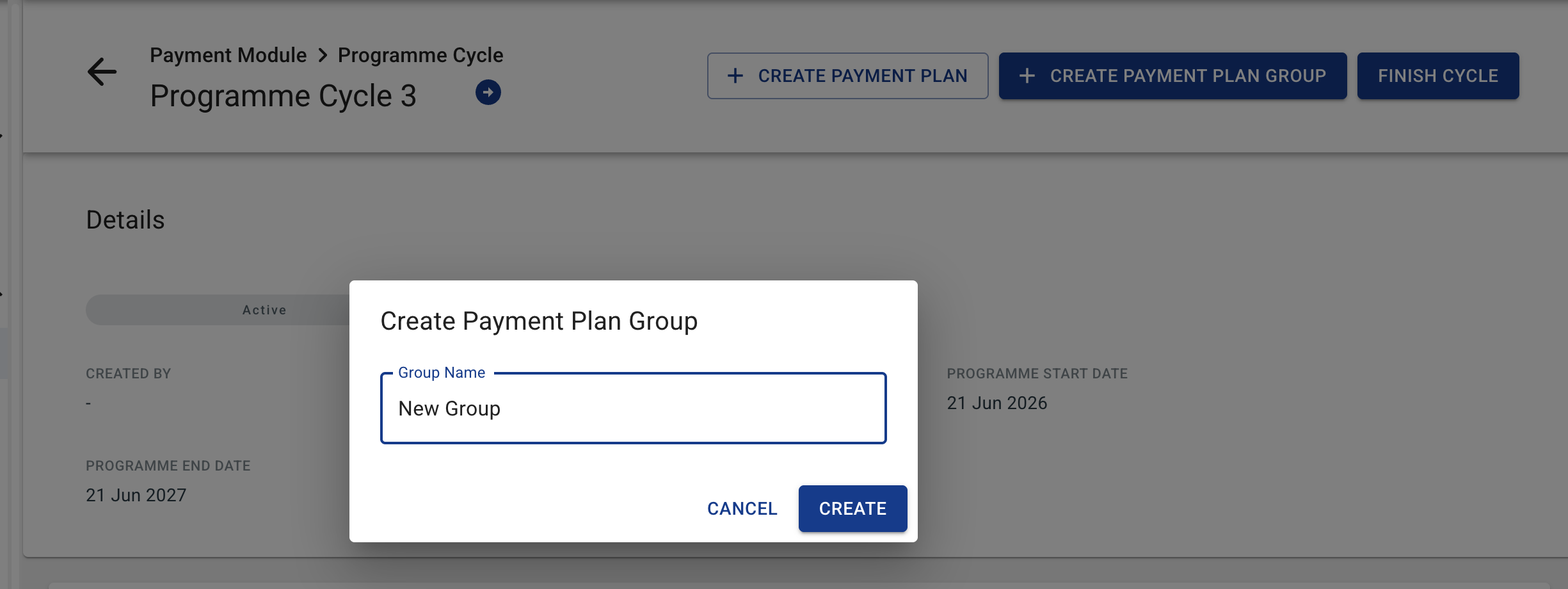
Assigning a Payment Plan to a Group
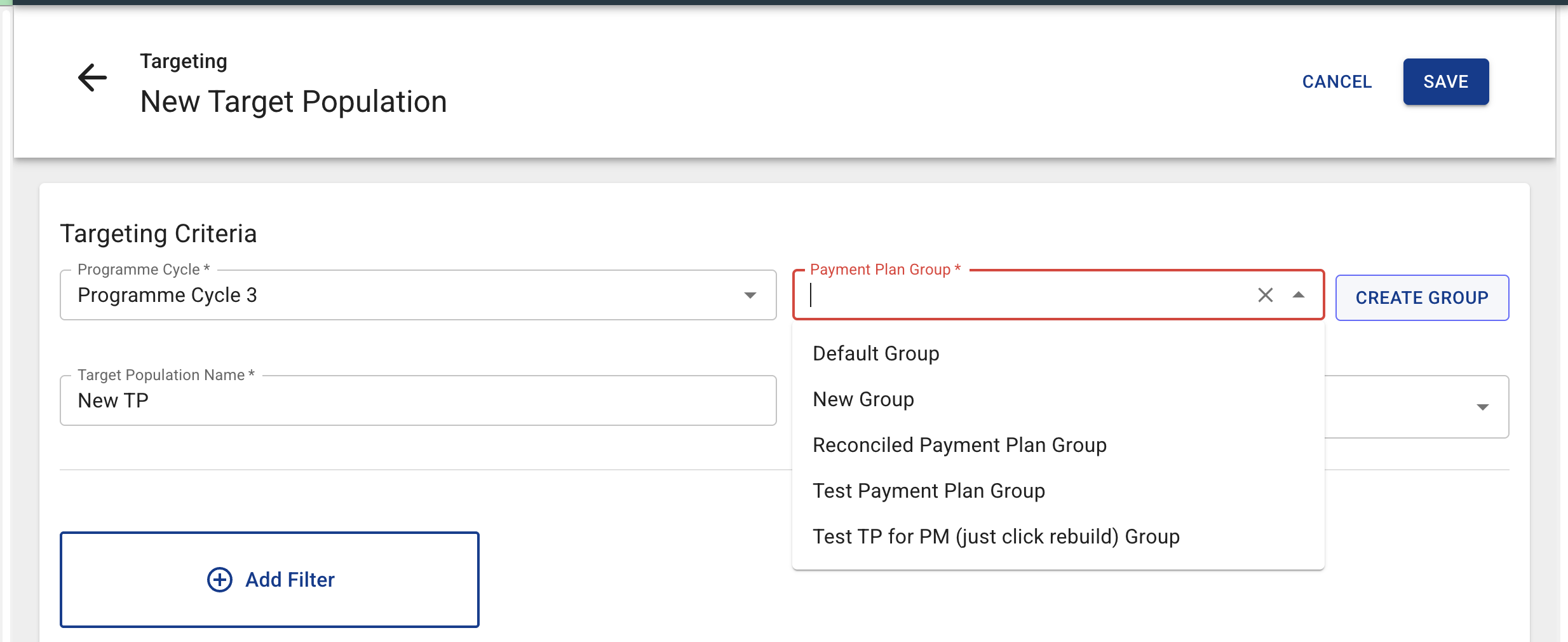
When creating a Target Population under a Cycle, the system prompts you to choose:
- Create New Payment Plan Group — creates a fresh group with a name you supply; the new plan is placed into it immediately.
- Add to Existing Payment Plan Group — opens a dropdown listing the groups already in this Cycle; the new plan joins the chosen group.
A Payment Plan belongs to exactly one group. The group can be changed by editing the Target Population — the new group must belong to the same Cycle. If you change the Cycle, you must also select a Group that belongs to the new Cycle.
Group operations
Edit name — the new name must be unique within the Cycle.
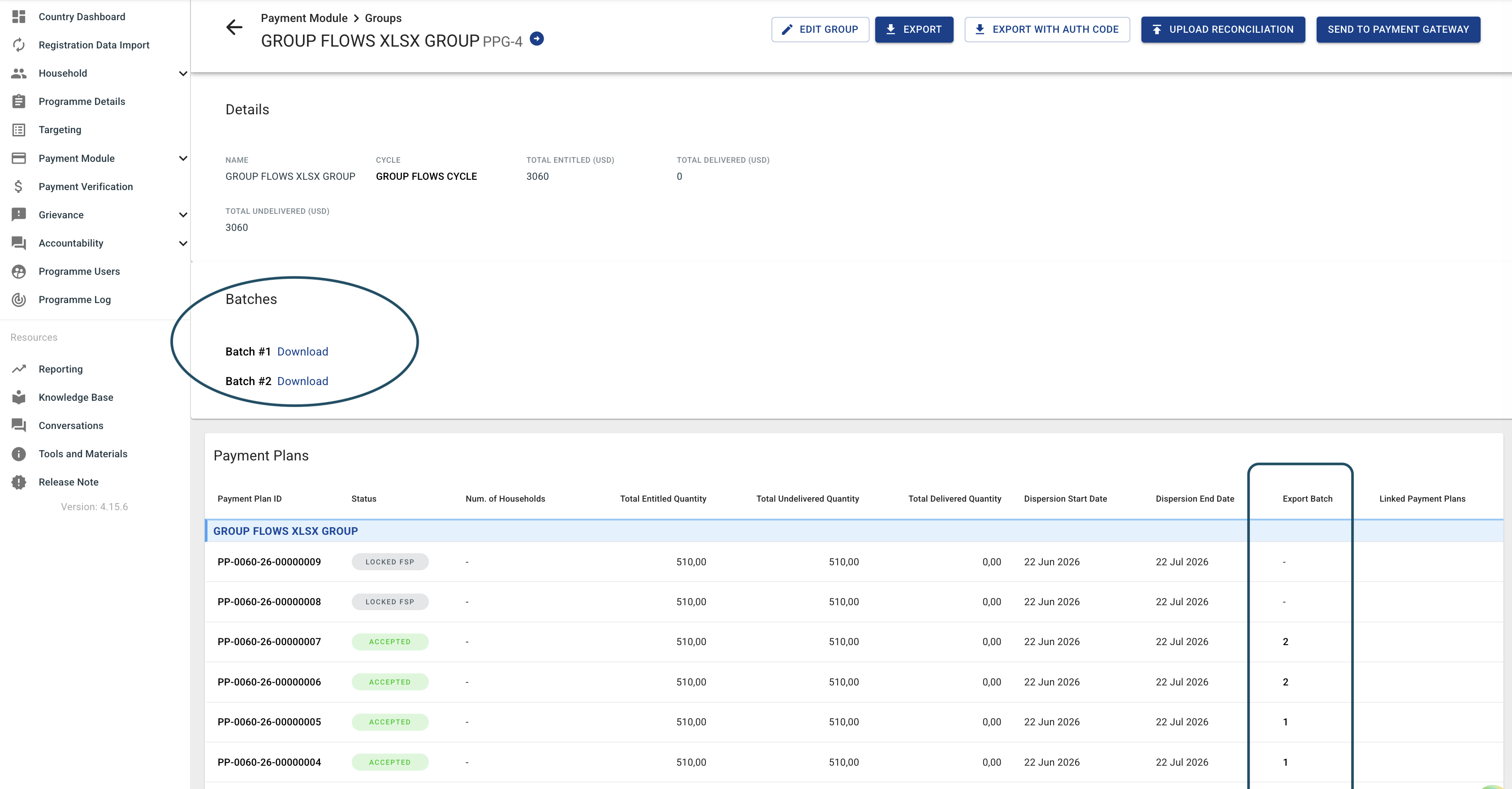
Export (combined XLSX) — triggers an export for all plans in the group that are in ACCEPTED or FINISHED status and have not yet been exported. Each export run produces a single XLSX file (one sheet) covering all qualifying plans. On success, the exported plans are stamped with a sequential batch tag number, which excludes them from future exports — so if new plans become eligible later, a second export creates a new batch.
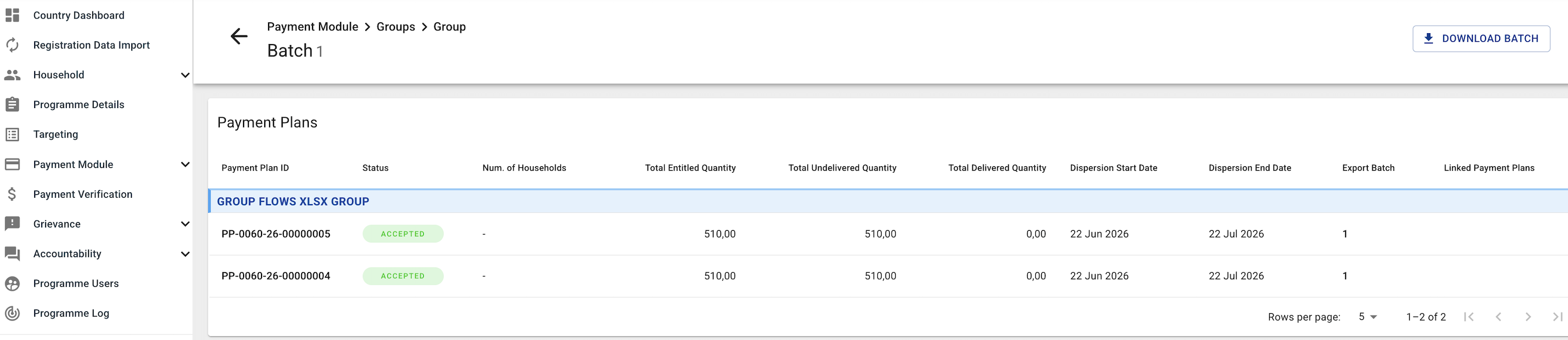
Each batch gets its own Batch Detail page (linked from the group) showing the Payment Plans included in that batch, a Download button for the XLSX file, and an option to send the file password if the file is password-protected. All past batches are also listed on the Group detail page with individual download links.
Send to Payment Gateway — sends each qualifying plan in the group to the payment gateway.
Delete — only allowed when the group has no Payment Plans attached. A Cycle must always have at least one group, so the last remaining group cannot be deleted.
Navigating Groups in the UI
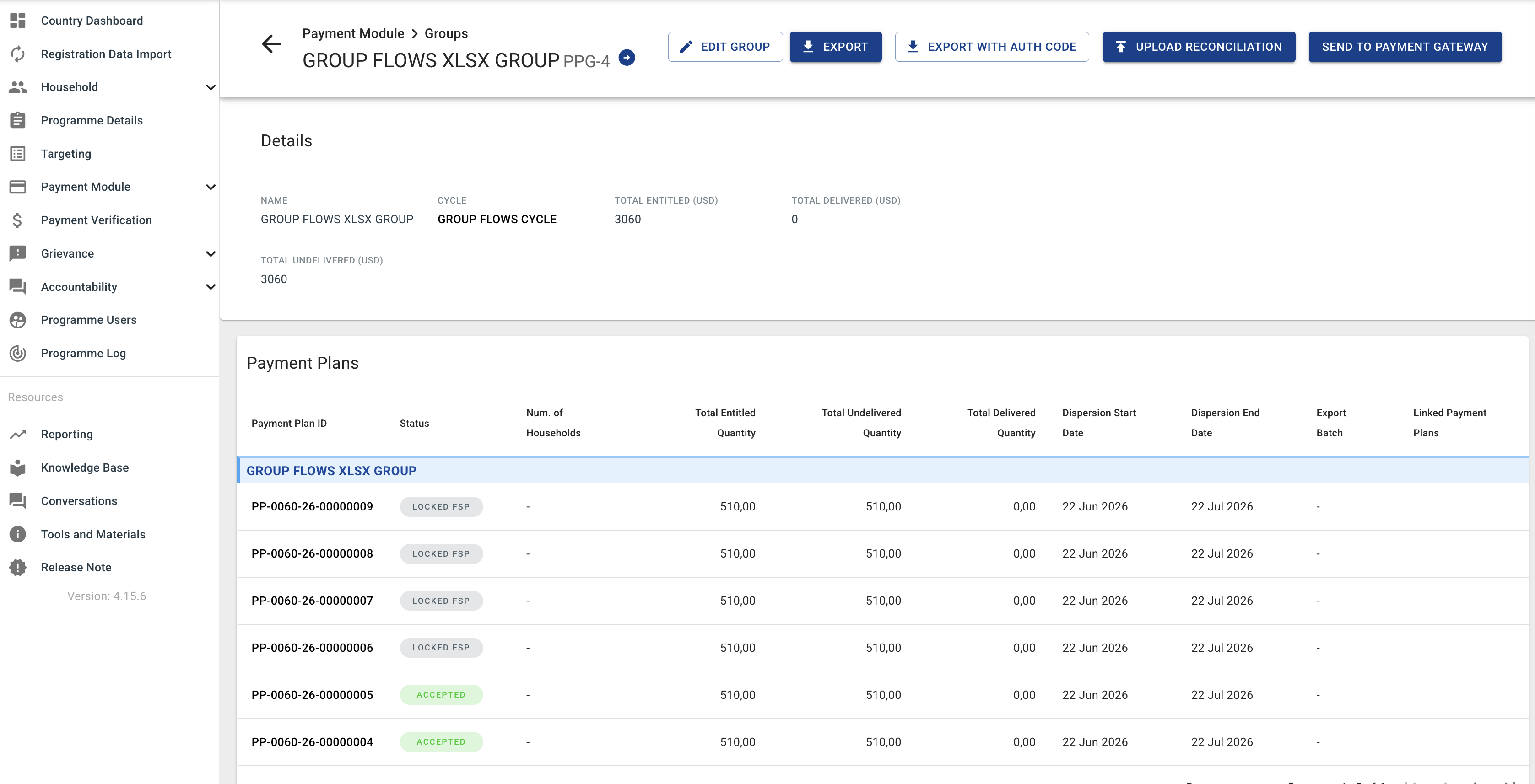
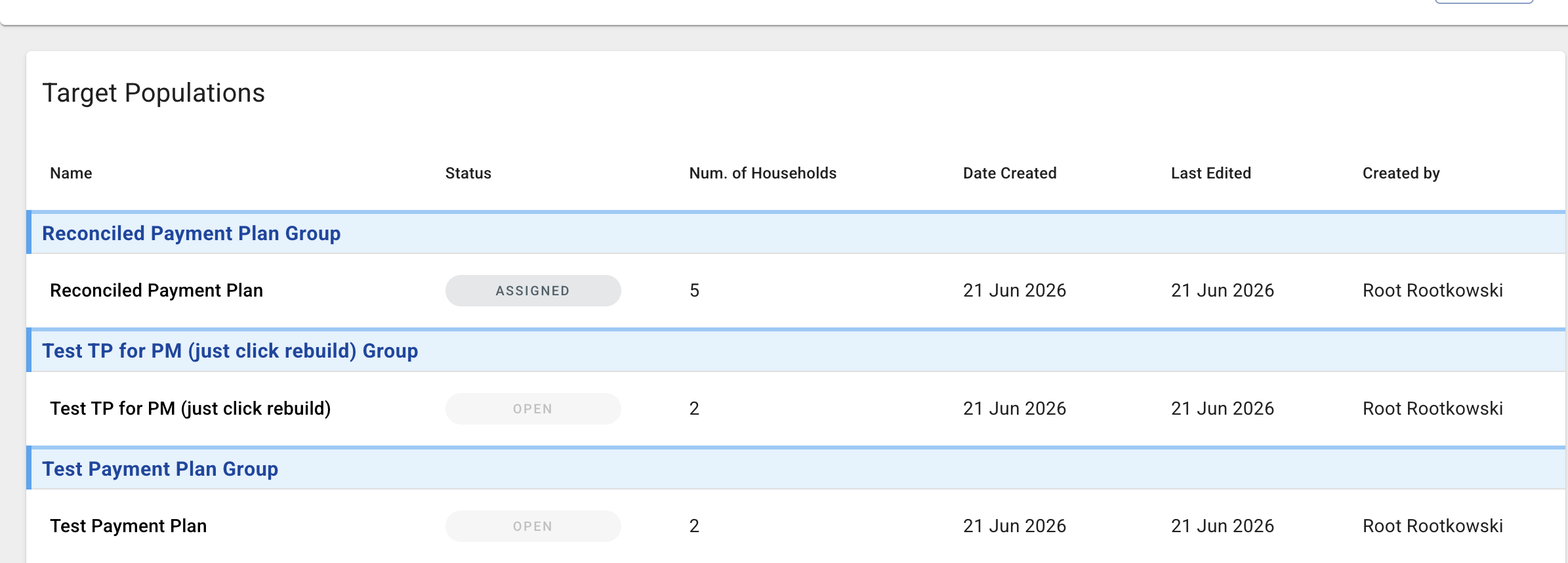
- Cycle detail and Payment Plans list, Target Populations list — plans are displayed under a group section header that separates each group's plans. The header links to the Group detail page.
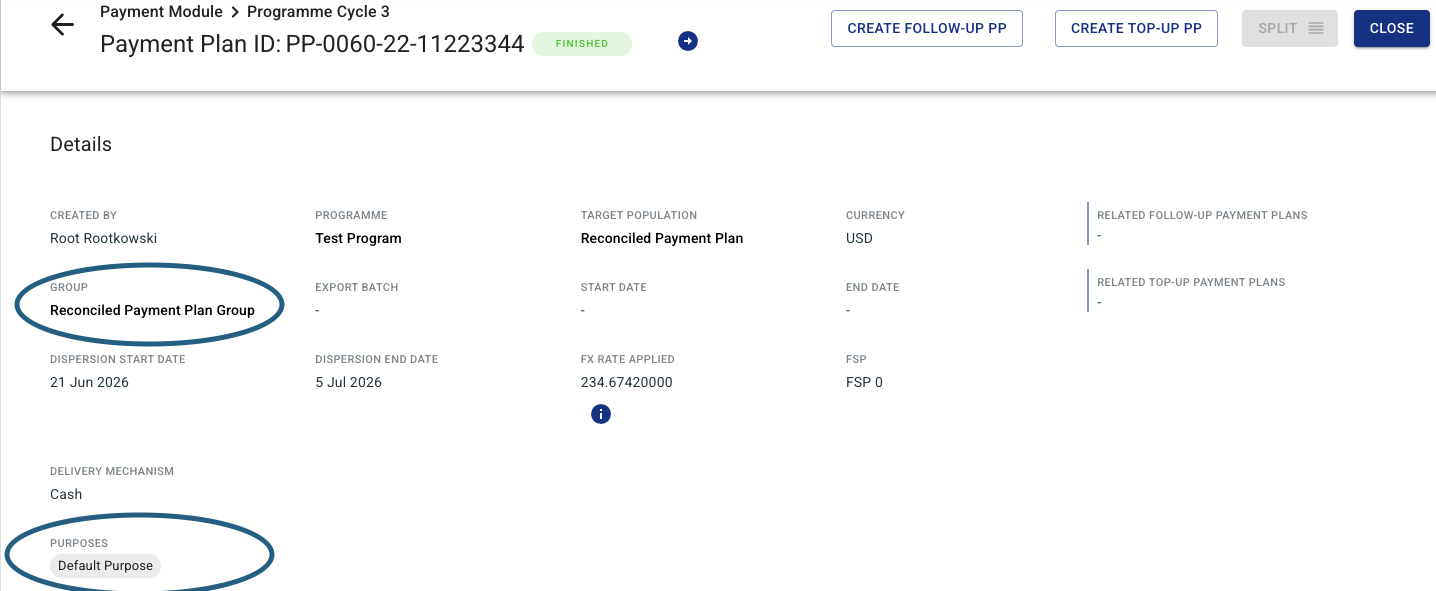
- Payment Plan detail — shows the assigned Group as a labelled field with a link to the Group detail page.
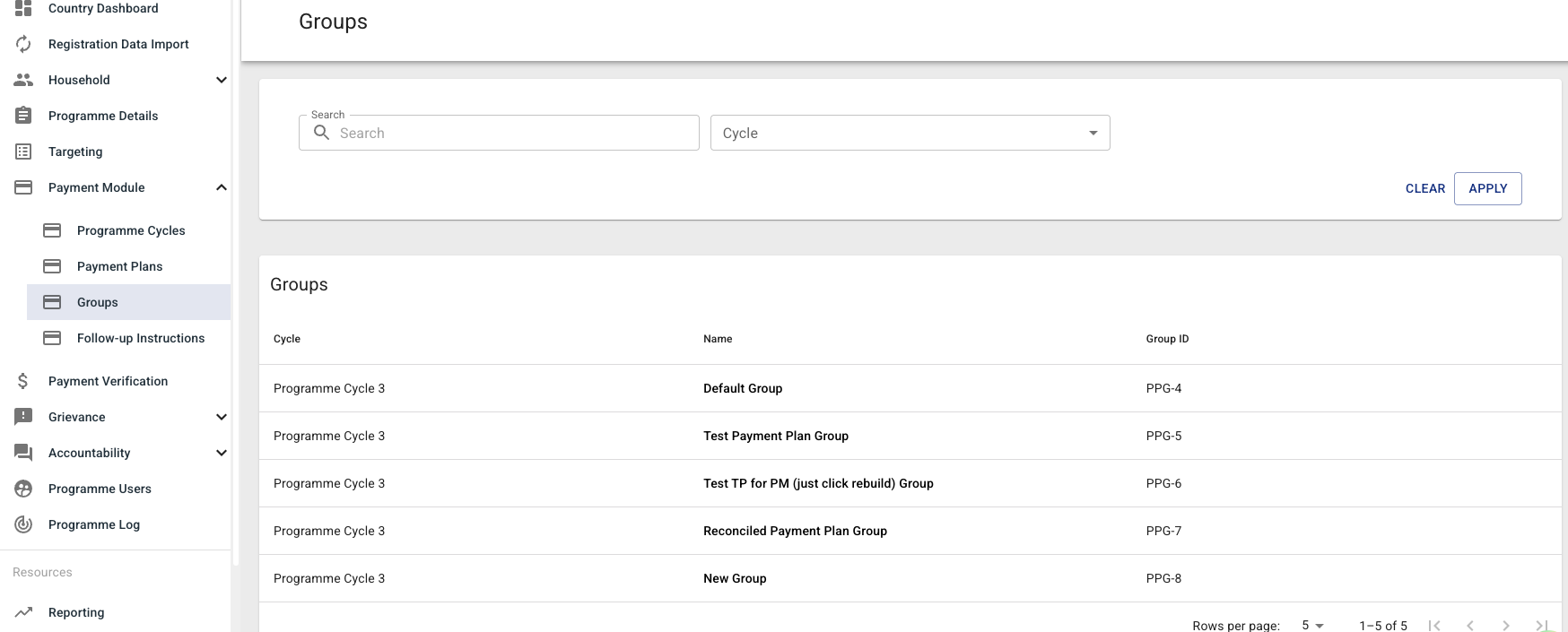
- Payment Plan Groups section — top-level section in the Payment Module listing all groups (name, UNICEF ID, Cycle, status).
Follow-Up Instructions
A Follow-Up Instruction is a batch container for follow-up payment plans generated from failed payments across one or more Payment Plan Groups. When you create an instruction, the system automatically produces a separate Follow-Up Payment Plan for each eligible source plan found in the selected groups. The instruction then provides a single combined export file and a unified reconciliation import covering all those follow-up plans.
All source plans in the selected groups must share the same FSP, delivery mechanism, and currency — the system validates this before creating the instruction.
Follow-Up Instruction status
The status of a Follow-Up Instruction is derived from its child Payment Plans. The instruction shows the earliest workflow stage present among all its child plans (e.g. if any child plan is still OPEN, the instruction shows OPEN).
Creating a Follow-Up Instruction
Click "Create Follow-up Instruction" in the new section Follow-up Instructions under the Payment Module. A dialog opens where you:
- Select one or more Payment Plan Groups from the same Programme.
- Set the dispersion start and dispersion end dates.
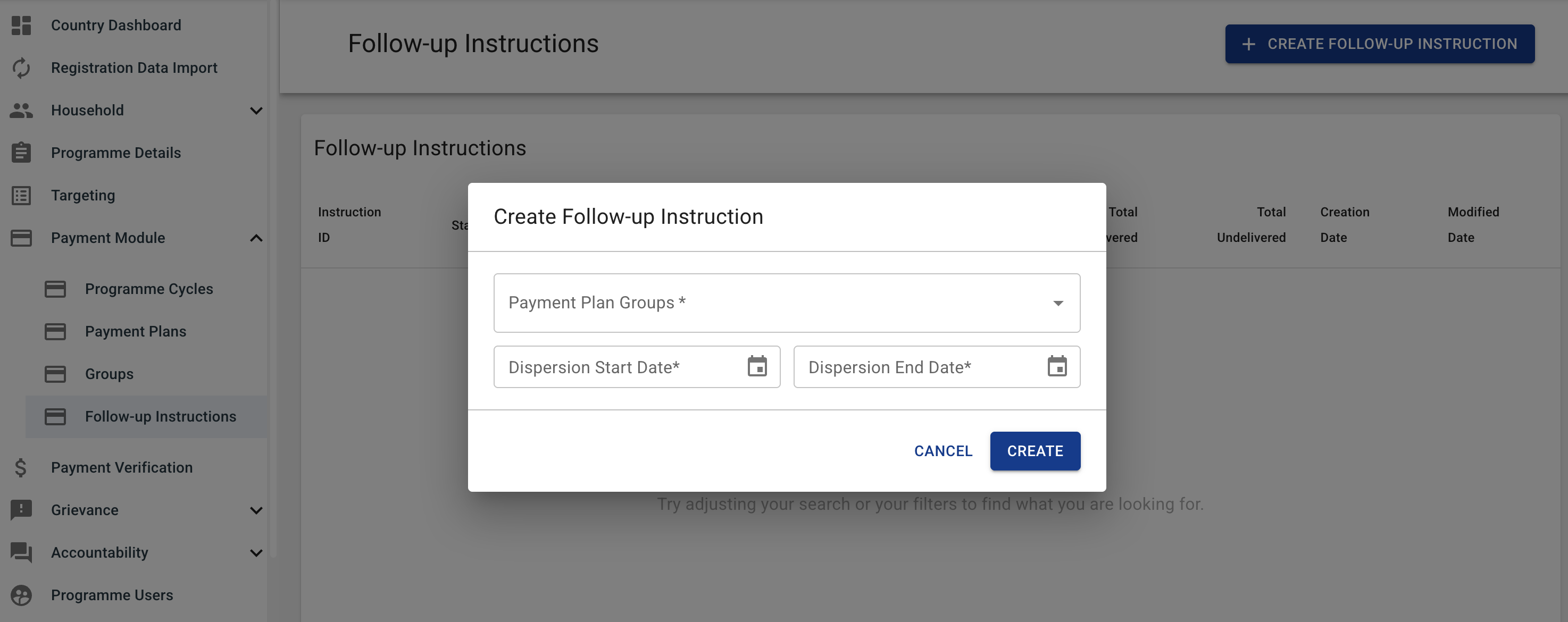
On submit, the system automatically creates a Follow-Up Payment Plan for every eligible source plan found in the selected groups. A source plan qualifies if it:
- Is not already managed by another Follow-Up Instruction.
- Has not yet had a follow-up plan created from it.
- Has at least one payment in a failed or undelivered status eligible for retry.
Withdrawn households are excluded from each generated plan.
Exporting and reconciling Follow-Up Instructions
Follow-Up Instructions support the same export / import reconciliation cycle as standard Payment Plans, but at the batch level:
- Export XLSX — generates a single file covering all child plans' failed payments.
- Upload Reconciliation — import the filled-in reconciliation XLSX; the instruction routes each row to the correct child plan.
Top-Up Payment Plans
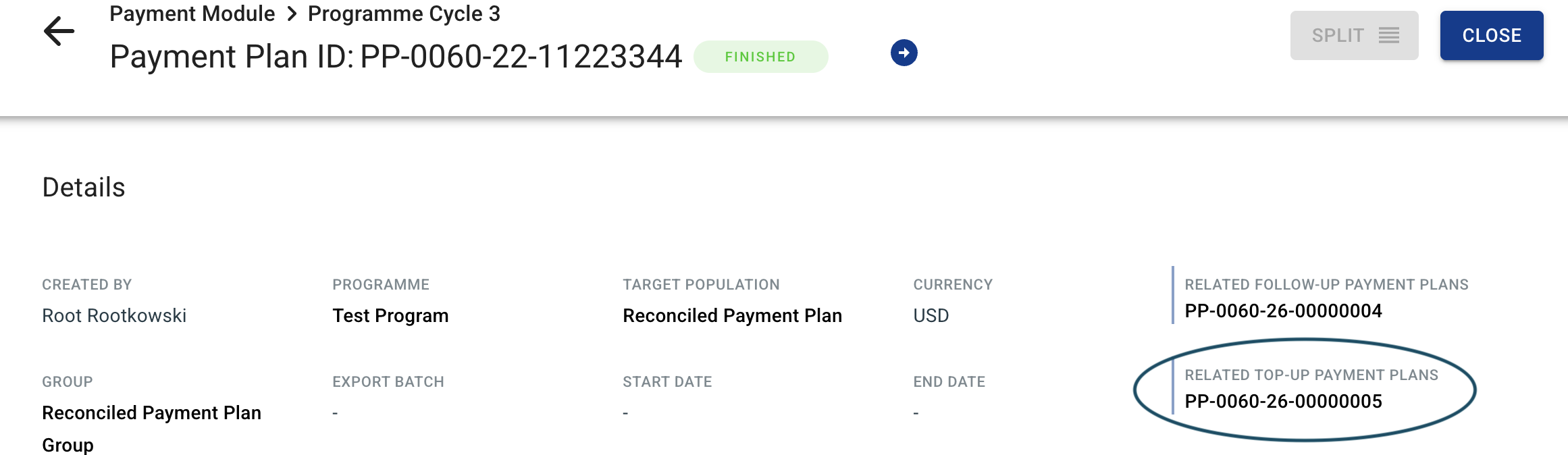
A Top-Up Payment Plan (plan_type = TOP_UP) is used to make an additional payment to households that are already in a specific source Standard plan in the same Cycle. It can contain any household from that source plan, whatever the status of their original payment — delivered, still pending, or failed.
When can you create a Top-Up?
The "Create Top-Up" button appears on a Standard Payment Plan in Accepted or Finished status that still has at least one beneficiary available to top up. Delivery is not required — a plan whose payments are all still pending can be topped up.
A beneficiary is available unless their household has been withdrawn, or they are already part of another Top-Up of the same source plan: one Top-Up per beneficiary per source plan.
Excluding a beneficiary does not free them
Excluding a payment from a Top-Up (or a Top-Up Amendment) does not return the beneficiary to the eligible pool. Being part of one child plan of a source — excluded or not — blocks them from another one. Only beneficiaries who were never included stay available.
A Top-Up that contains failed payments can itself be the source of a Follow-Up Payment Plan, exactly like a Standard plan.
Setting the Top-Up amount
The amount is chosen while creating the Top-Up, in one of two ways:
- Fixed — one amount for every eligible beneficiary. Nobody is left out.
- Custom / per beneficiary — download the template, fill in an amount per beneficiary, and upload it. The file decides both the amounts and who is in: beneficiaries left empty or set to zero are not part of the Top-Up, and stay available for a later one.
This is how a source plan is split across several Top-Ups — fund some beneficiaries now, leave the rest at zero, and create another Top-Up for them later.
Before anything is submitted, the dialog reads the uploaded file in the browser and shows how many payments it would fund — for example "New Top-Up will be created for 12 payments".
flowchart TD
    A["Create Top-Up dialog"] --> B{"Amount mode"}
    B -- Fixed --> C["Every eligible beneficiary included<br/>with the same amount"]
    B -- Custom --> D["Download the amount template"]
    D --> E["Fill in an amount per beneficiary"]
    E --> F["Upload the file"]
    F --> G{"Row amount"}
    G -- Above zero --> H["Beneficiary included<br/>with that amount"]
    G -- Zero or empty --> I["Not included — stays available<br/>for a later Top-Up"]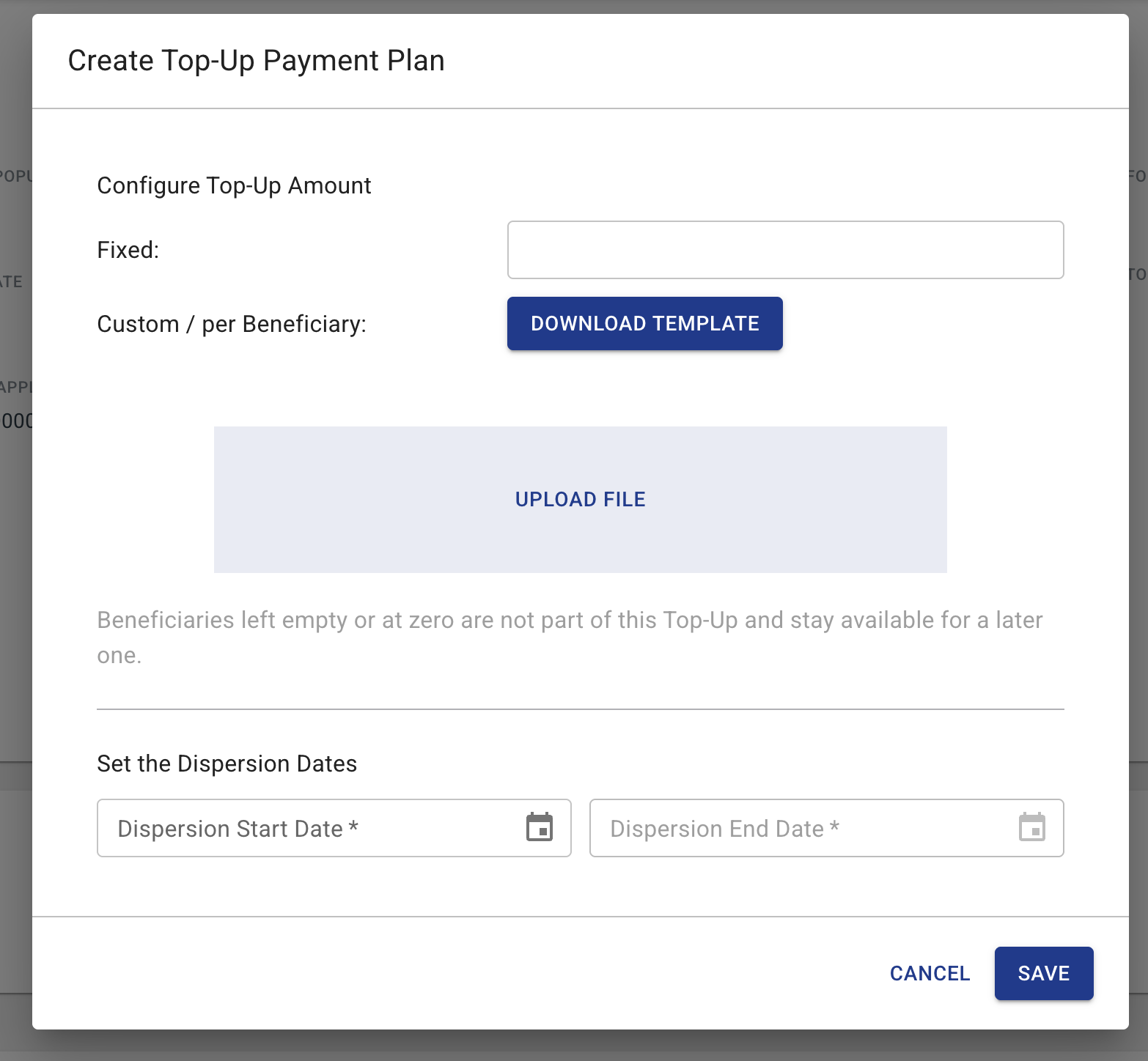
What a Top-Up inherits
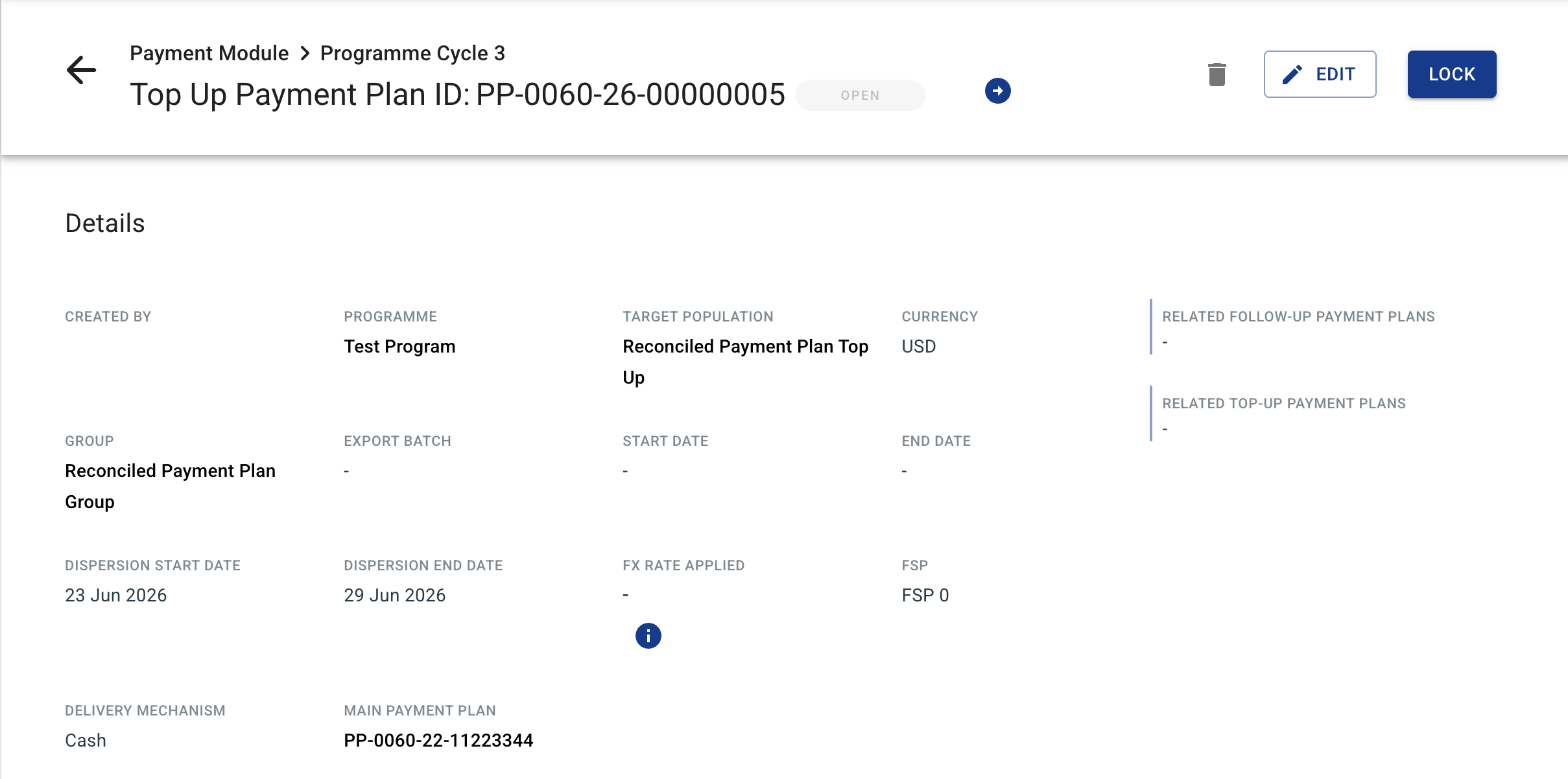
A Top-Up Plan automatically inherits the source plan's Programme Cycle, Purposes, currency, FSP and delivery mechanism. Only the dispersion dates and the amount are chosen when creating it. Users do not select Purposes when creating a Top-Up.
Top-Up Amendments
A Top-Up Amendment (plan_type = TOP_UP_AMENDMENT) is a secondary correction layer on top of a Top-Up Plan. It is created from a Top-Up Plan (not from a Standard plan) and adjusts the amounts of households within that Top-Up.
The "Create Top-Up Amendment" button appears on a Top-Up Payment Plan in Accepted or Finished status when at least one of its payments is on a non-withdrawn household and is not yet covered by another Amendment. As with a Top-Up, the payment's delivery status does not matter — delivered, pending and failed payments can all be amended.
The creation dialog is the same one used for a Top-Up: the amount is set either as a Fixed value for everyone, or per beneficiary by downloading the amount template and uploading it filled in. Beneficiaries left empty or at zero in the file are not part of the Amendment and stay available for a later one. Like a Top-Up, an Amendment inherits the source Top-Up's Programme Cycle, Purposes, currency, FSP and delivery mechanism.
An Amendment that contains failed payments can be the source of a Follow-Up Payment Plan. An Amendment cannot itself be amended again.

Creation-time funding of Top-Ups and Top-Up Amendments was introduced by Change Request 332492: Improve the Top-Up Payment Plan workflow ⧉.